Merchandise Management
For whom: owner and decision-makers · Where: Admin → Stock (additional tabs)
Merchandise management extends stock management with everything a business needs that passes goods on instead of consuming them: devices with serial numbers, delivery notes, a packing station, complaints with warranty checks, set articles and key figures.
Prerequisite
Merchandise management requires stock management. Both are unlocked under Admin → Settings → Operations → Modules; without the stock module, merchandise management cannot be switched on.
Who it is worthwhile for
| Business | What merchandise management does there |
|---|---|
| Retail | Delivery note for the sale, packing station with scanner, shipping with tracking number |
| Workshop and service | Every device with a serial number, warranty on the device, complaint with history |
| Shipping | Target list when packing, partial delivery with remainder delivery note, shipping notice to the customer |
| Hospitality with a side business | Set articles ("Grill package"), delivery notes for catering and rental |
A pure hospitality business does not need it: there the kitchen consumes the goods, and stock management alone handles that.
What is added
With the module, five additional tabs appear in Admin → Stock:
| Tab | Purpose | Chapter |
|---|---|---|
| Devices | Every single item with serial number, condition, warranty and customer | Serial numbers |
| Delivery notes | Documents for delivered goods, with number and PDF | Delivery note |
| Packing station | Scanning against the target list, capturing cartons, partial delivery | Packing and shipping |
| Complaints | Returns with warranty check, history and decision | Complaint |
| Statistics | Stock value, open cases, supplier lead times | Statistics |
In addition, new fields appear in familiar places:
- Admin → Suppliers gets the Terms tab with supplier number, payment term, cash discount and free-delivery threshold — see Suppliers with terms.
- Orders get an order number, shipping costs, tax per item and a totals block — see Ordering.
- The article gets the checkboxes "Track serial numbers" and "Set" — see Serial numbers and Sets.
Unlocking the module
Merchandise management is part of the licence scope — there is no switch of its own for it in the settings. It becomes visible as soon as two things come together: merchandise management is included in your licence, and stock management is switched on.
- Open Admin → Settings → Operations → Modules.
- Check that Stock management is switched on — otherwise switch it on and save.
- Reopen Admin → Stock — the additional tabs are there.
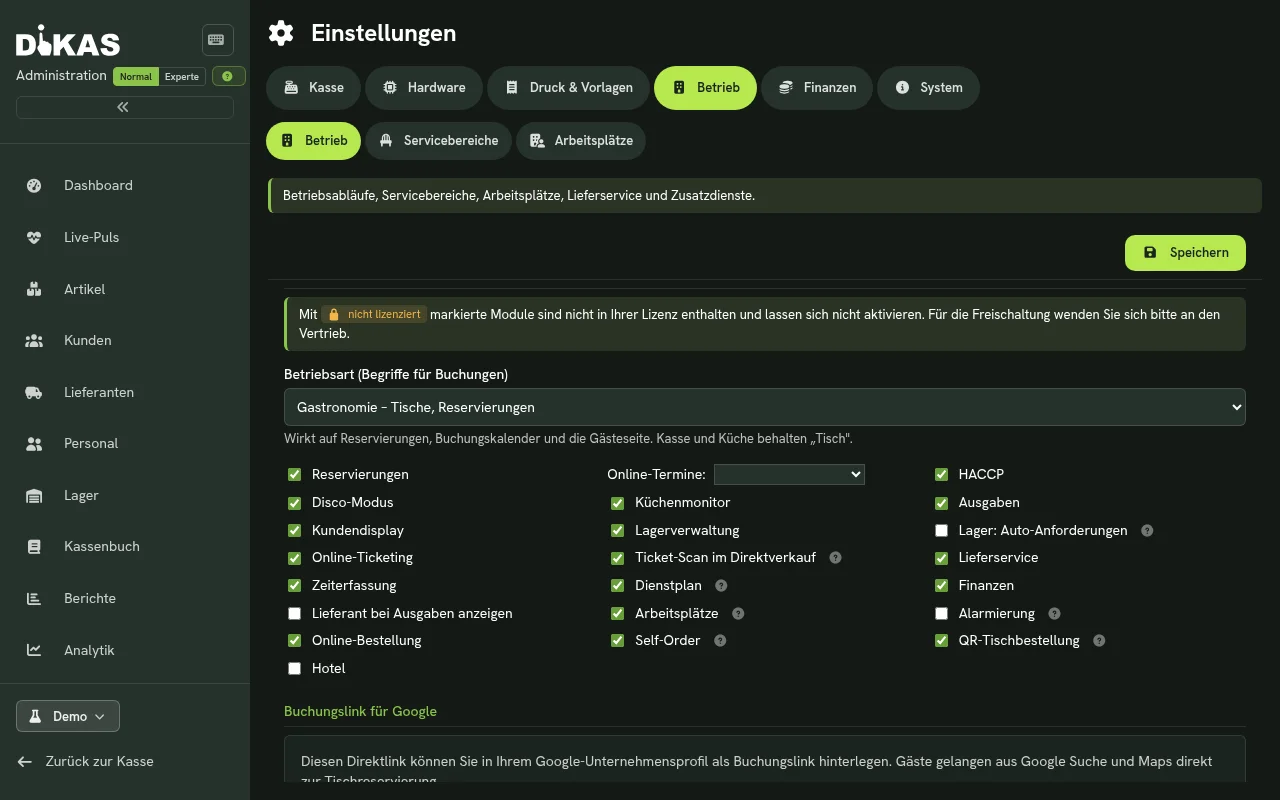
The additional tabs are still missing?
Then merchandise management is not included in your licence. Modules that are not part of the licence are labelled "not licensed" in the module list and cannot be activated — sales will help with unlocking.
Permissions first, then the work
The new areas have permissions of their own: changing devices, issuing delivery notes and deciding complaints can each be assigned individually. The permissions overview shows who needs what — distributing them once in advance saves follow-up questions in the first week.
The four sentences that save follow-up questions
Please read once
- A delivery note only gets its number when it is issued. A draft has none.
- The tracking number is entered, not generated. DiKAS does not register the shipment with a parcel service — you enter the number you got from the carrier.
- A device that has been shipped disappears from stock. If it is sent back and accepted, it returns.
- A set does not keep a stock level of its own — it draws on its components.
Next steps
- Suppliers with terms — the starting point: without maintained suppliers the rest stays half empty
- Serial numbers — the centrepiece for retail and workshop
- Permissions overview — who may do what