Set Language
DiKAS is multilingual: each employee sets their own language for the user interface — independent of which language colleagues on the same device have chosen. The switch takes effect immediately, no page reload required.
How to switch the language
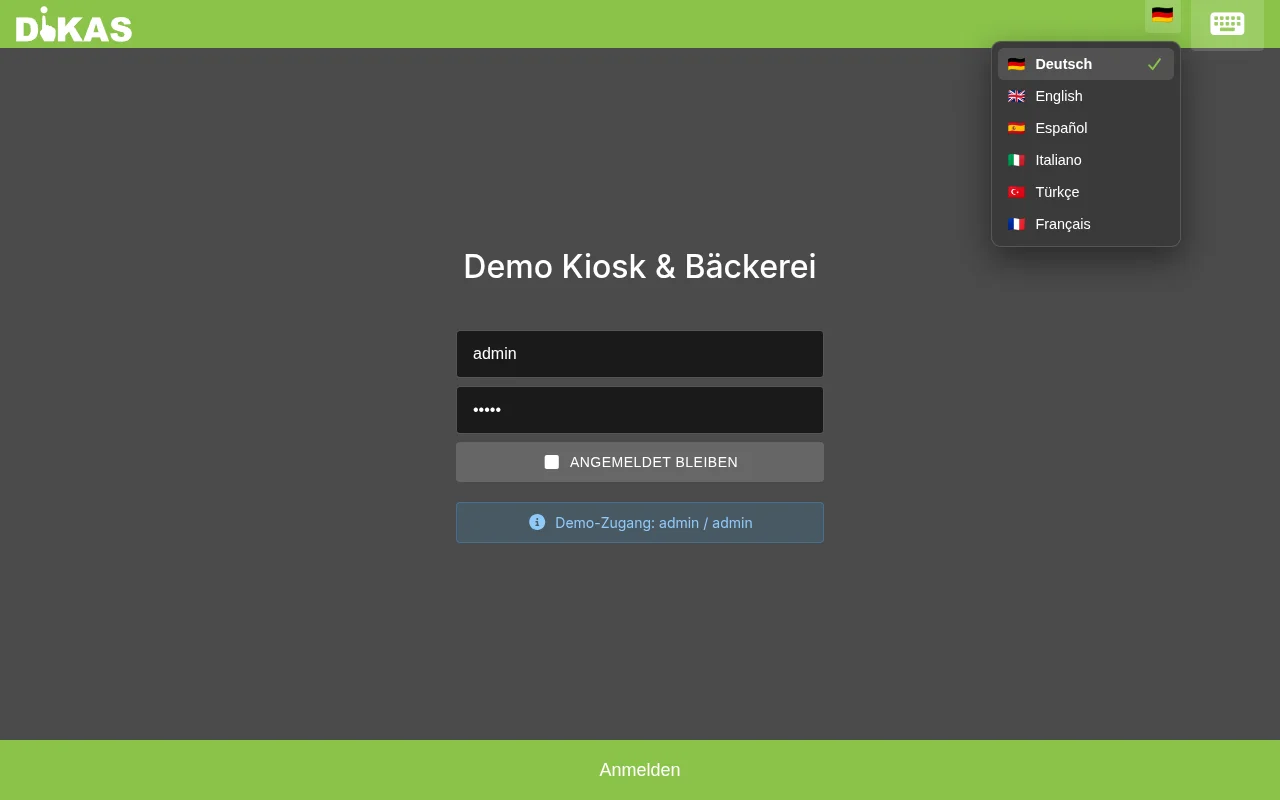
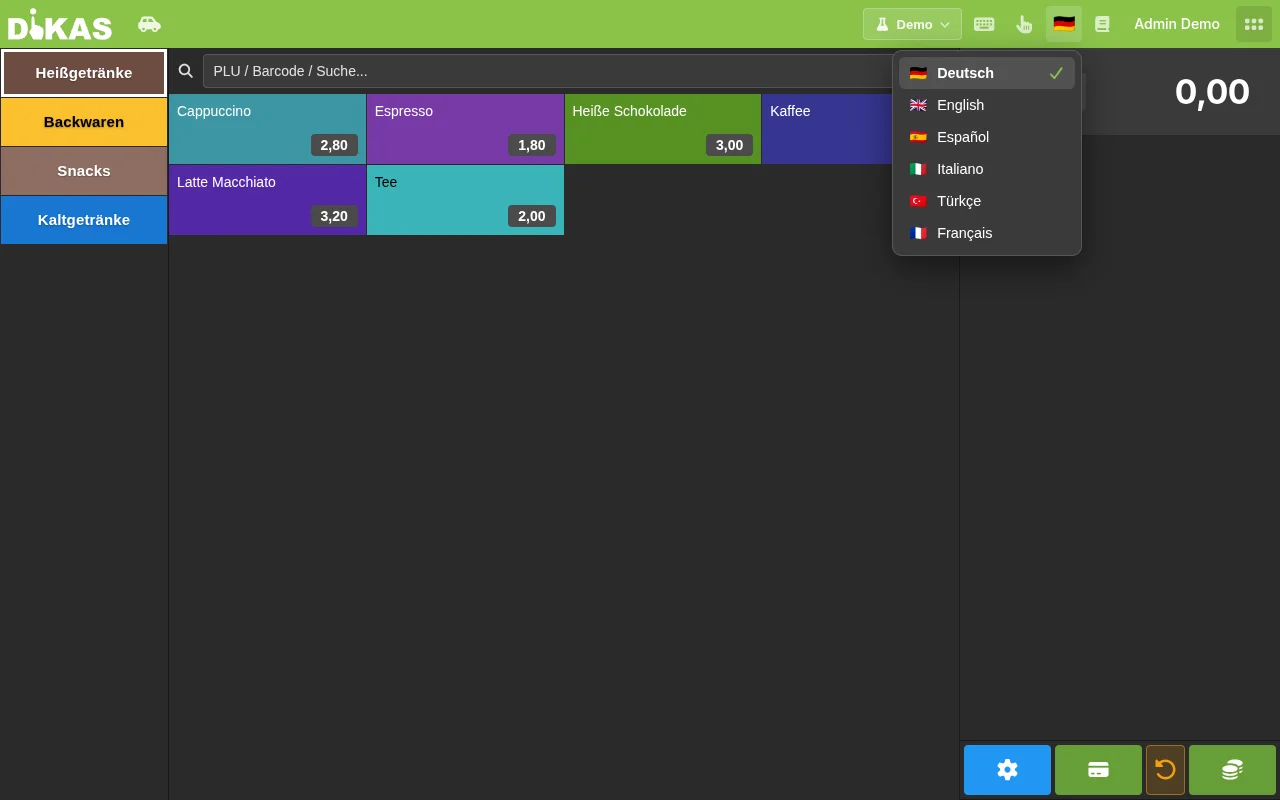
Click the flag icon — at the top of the login screen next to the logo, or in the header bar of the till (visible everywhere in the POS area). Select your language from the list.
Available Languages
| Language | Flag |
|---|---|
| Deutsch | 🇩🇪 |
| English | 🇬🇧 |
| Español | 🇪🇸 |
| Italiano | 🇮🇹 |
| Türkçe | 🇹🇷 |
| Français | 🇫🇷 |
ℹ️ The till interface also supports French. This user manual is currently available in German, English, Spanish, Italian, and Turkish — a French version of the documentation is not yet available.
Where You Can Switch the Language
Login Screen
Before signing in, the language switcher sits at the top right next to the DiKAS logo. This is handy if an employee wants to set their language before logging in.
Till Header Bar
After signing in, the same switcher is available in the header bar — reachable from every area of the till (direct sale, table service, kitchen, admin …) without logging out.
Operation
- Tap the flag icon — the list of languages opens.
- Click the desired language. Alternatively, use the arrow keys to navigate the list and confirm with Enter.
- The interface switches languages immediately — menu texts, buttons, and messages appear in the chosen language.
- Press Escape or click elsewhere to close the list without changing the language.
Where the Setting Is Stored
| Situation | Storage location |
|---|---|
| Signed-in employee | Saved on the employee's profile — the language then applies on every device that employee signs into |
| Not yet signed in (login screen) | Remembered locally on this device only, until someone signs in |
This way, for example at a counter with rotating staff, each employee can automatically see their usual language after signing in, without having to set it again every time.
What is translated — and what isn't
The user interface itself is translated (menus, buttons, dialogs, error messages). Not translated is your own data — article names on the menu, customer names, or text on receipts stay exactly as you entered them.
Next Step
→ Staff Switch — switching employees on the device