Settings¶
Under Admin → Settings you configure the entire DiKAS system. The settings are organized in tabs and cover all areas — from master data to printers and terminals to integrations with banking systems, AI services and draught systems.
Admin → Settings
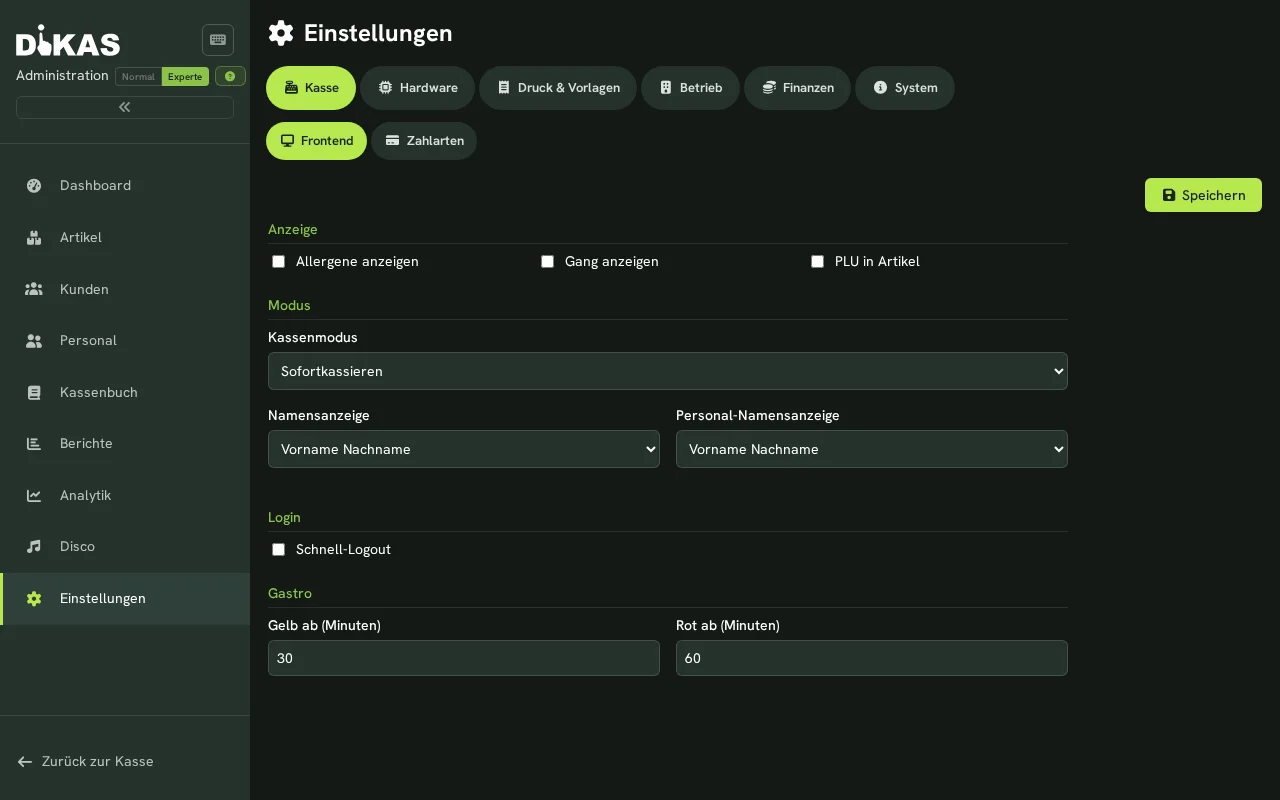
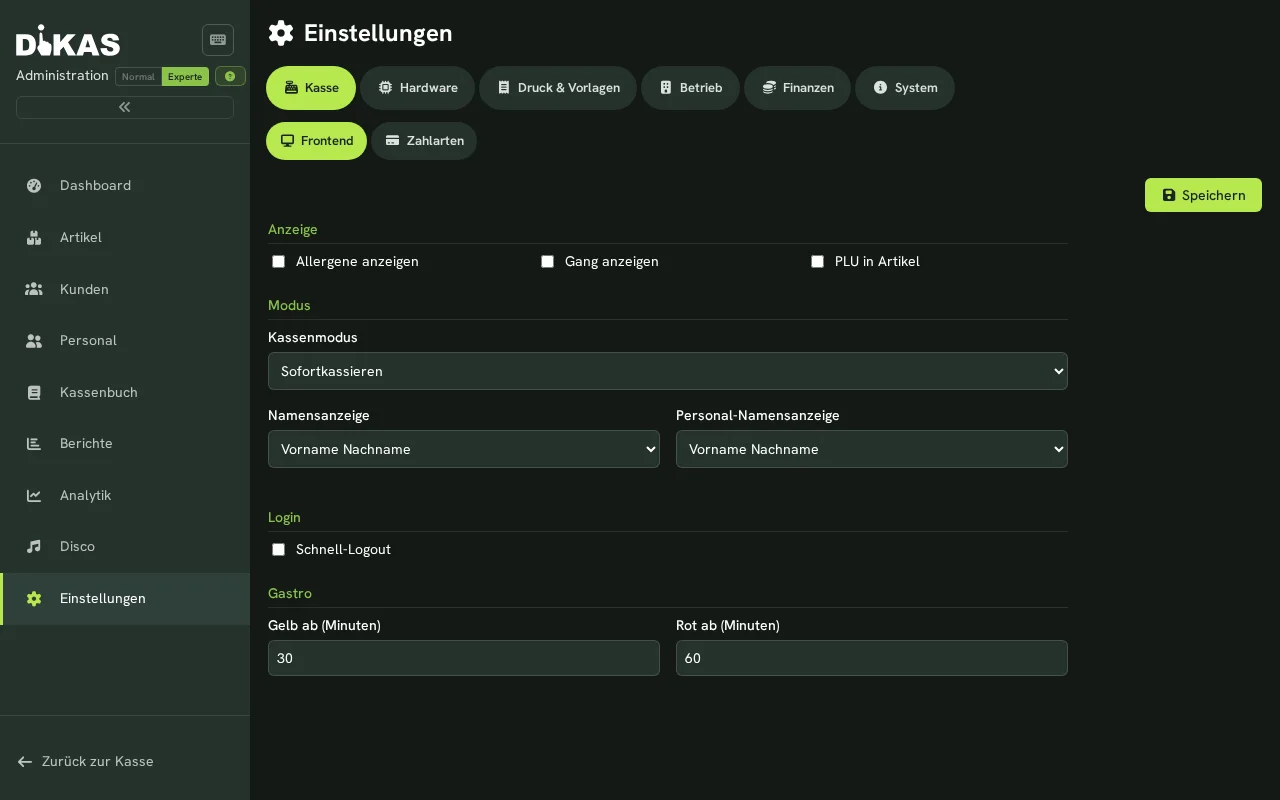
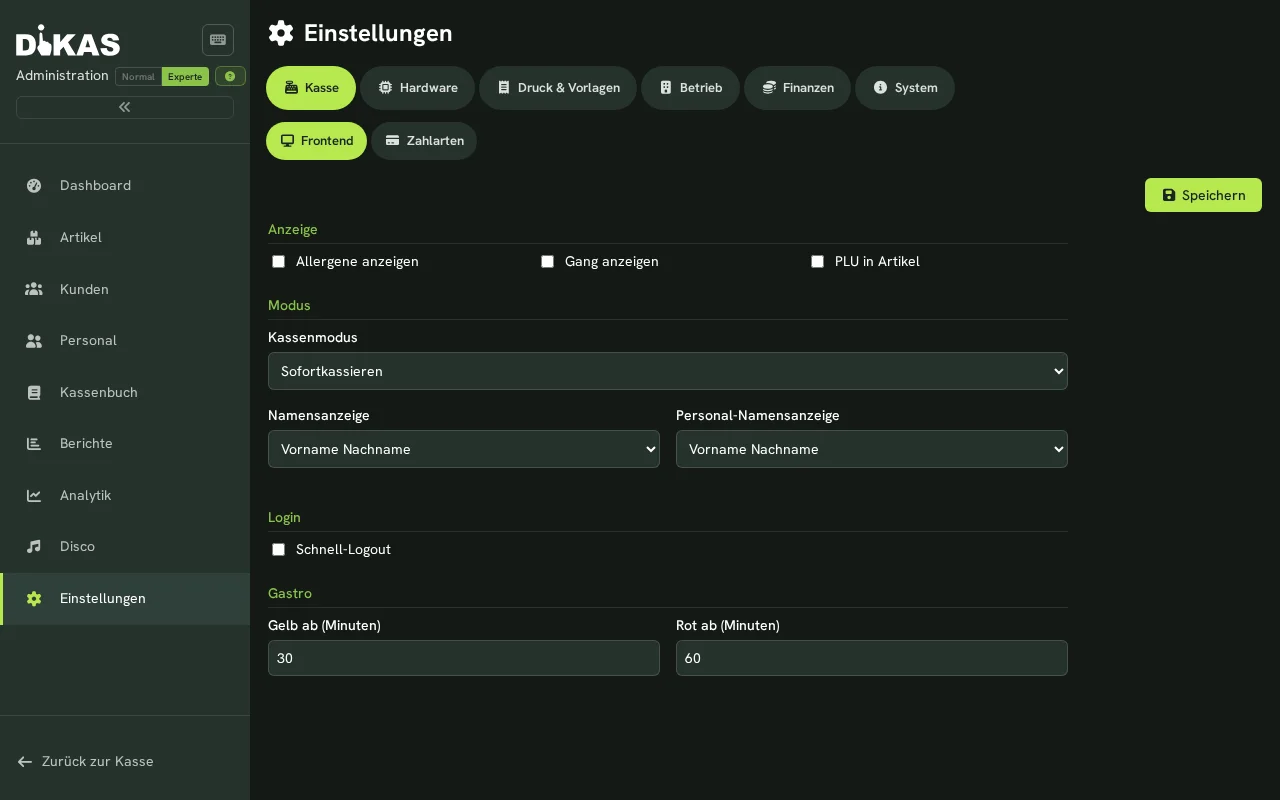
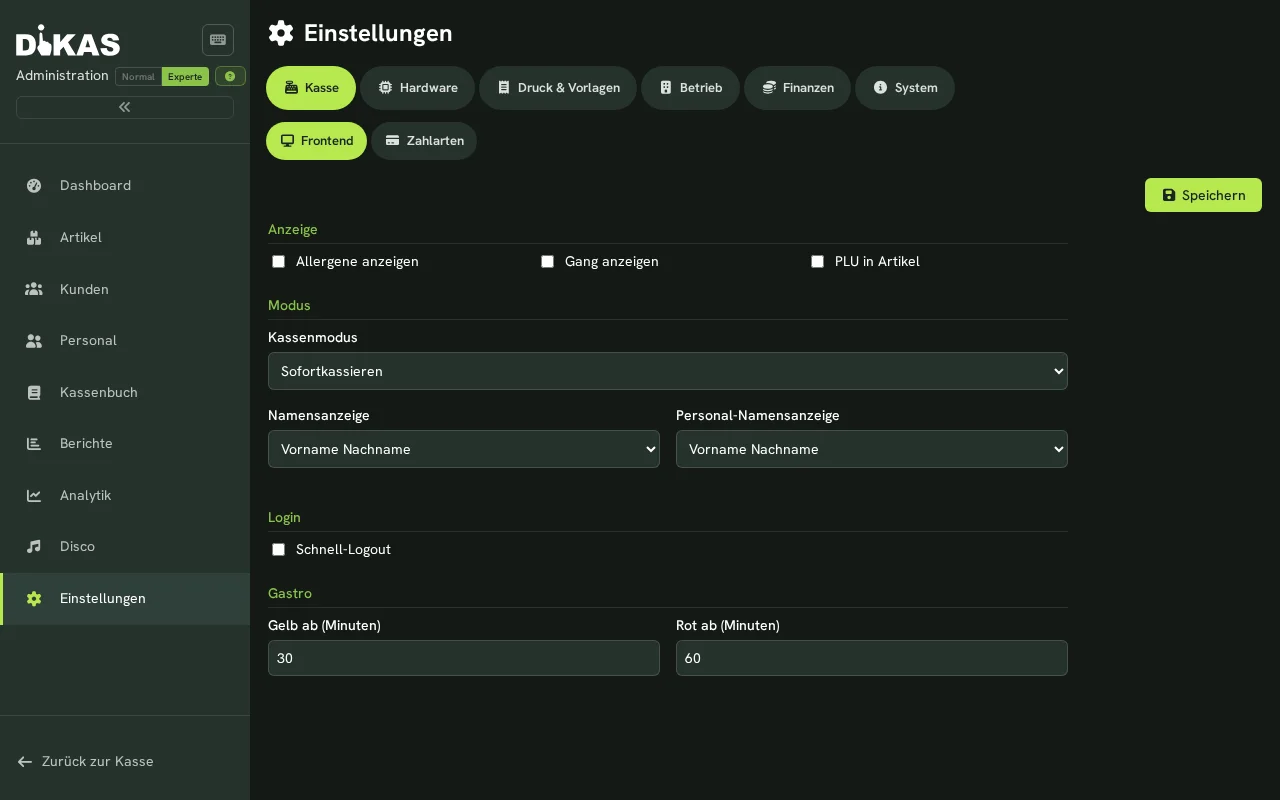
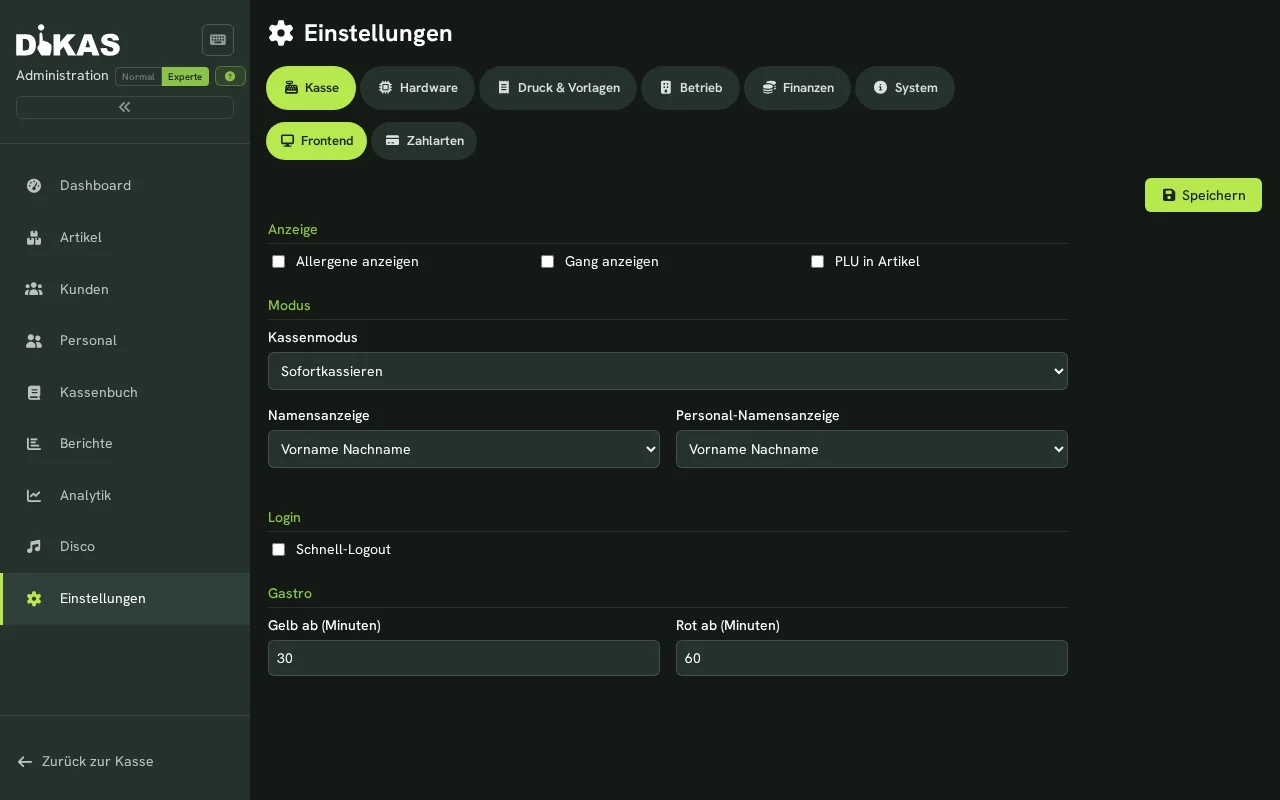
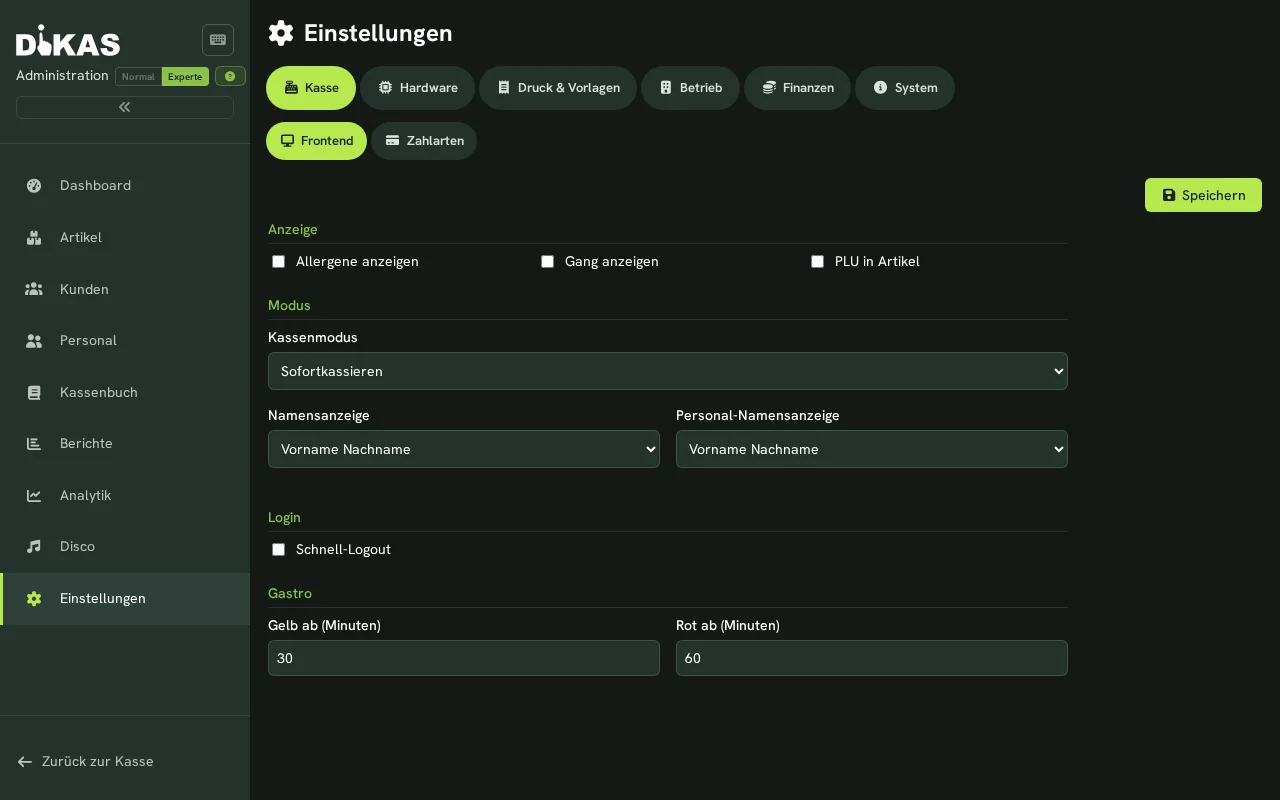
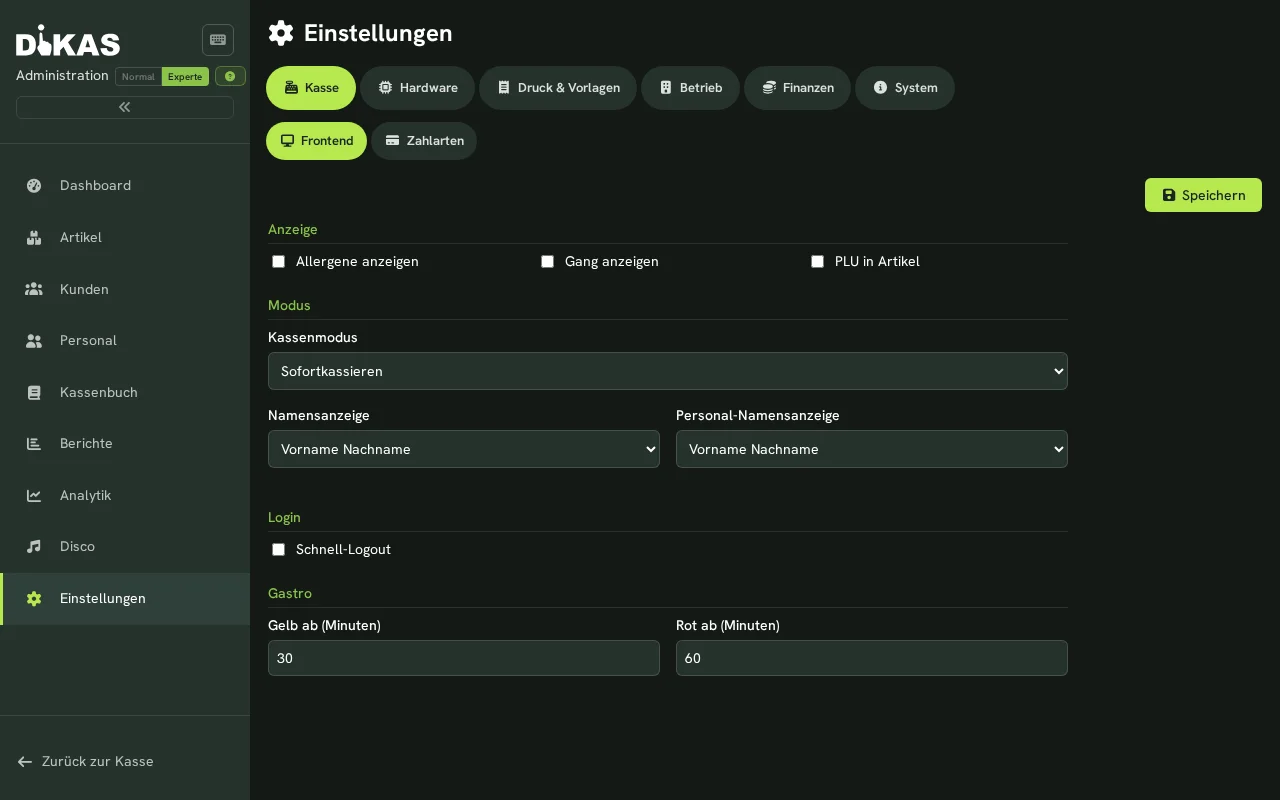
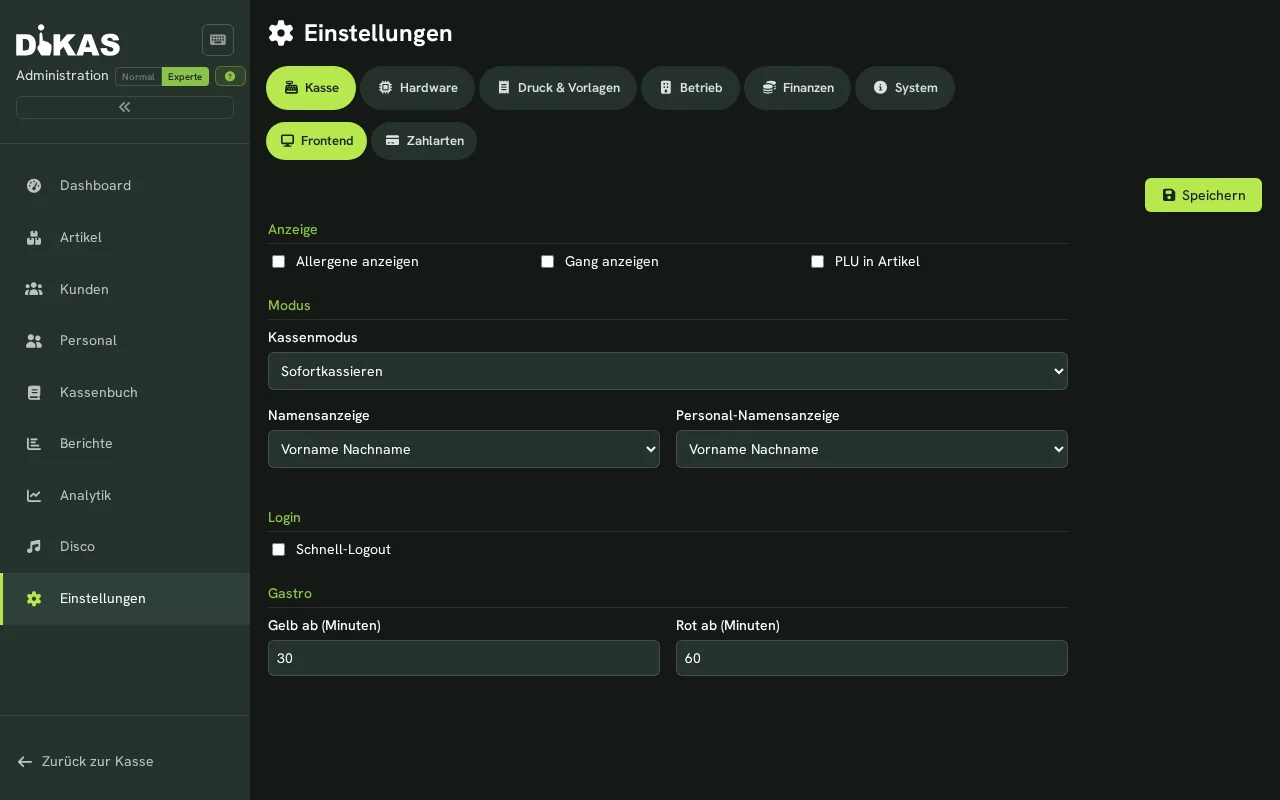
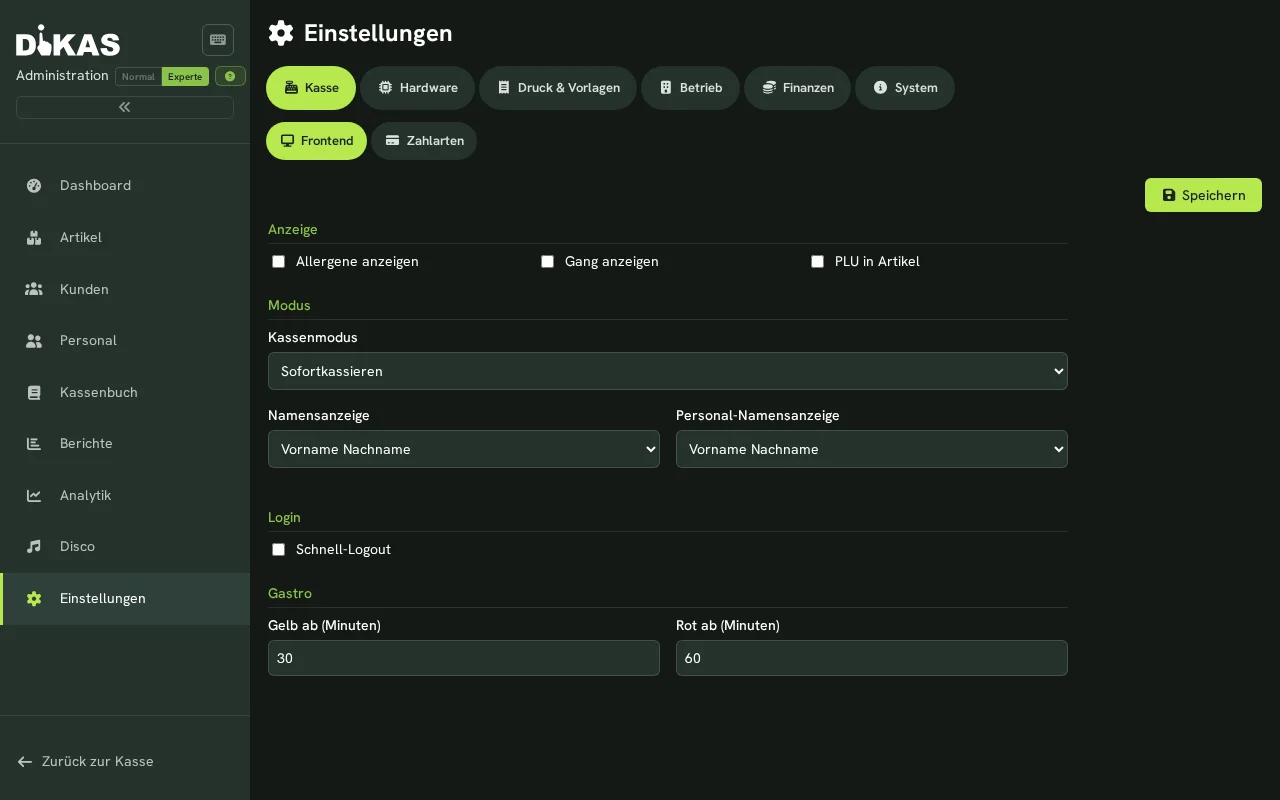
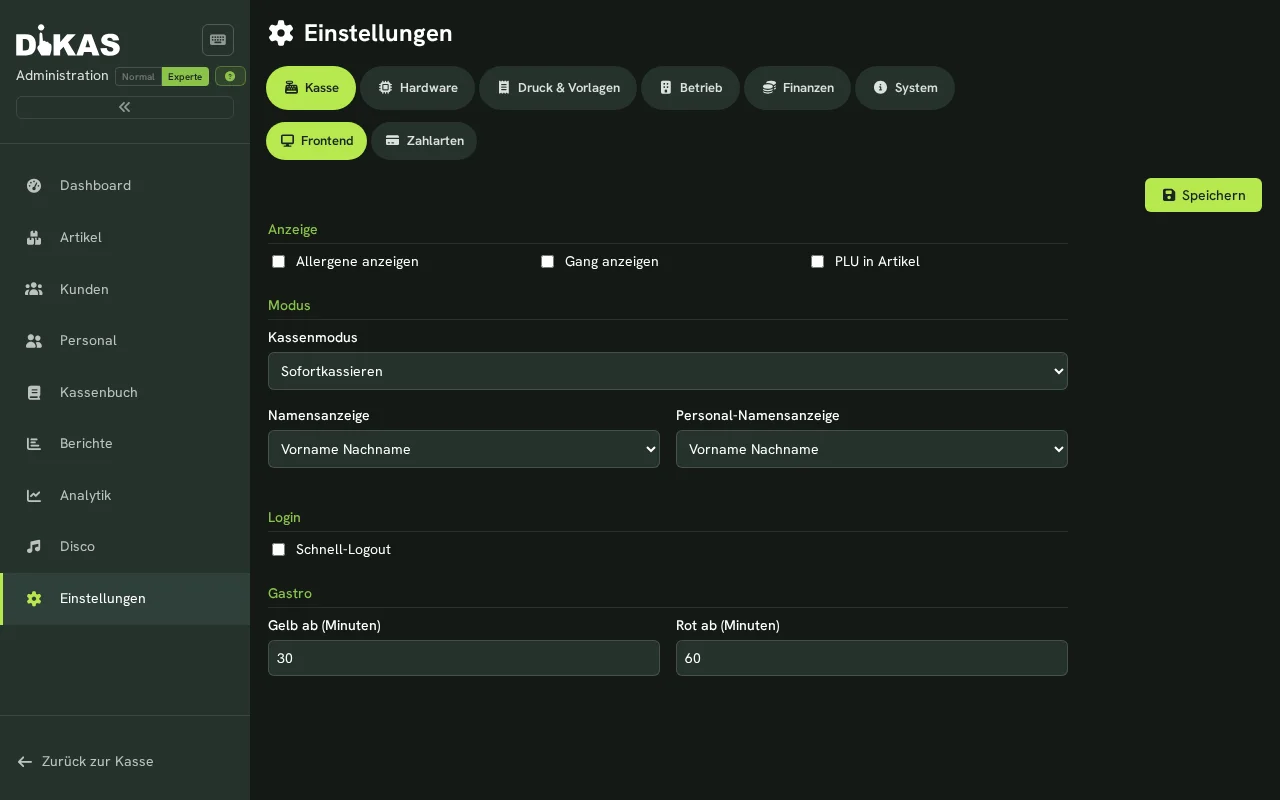
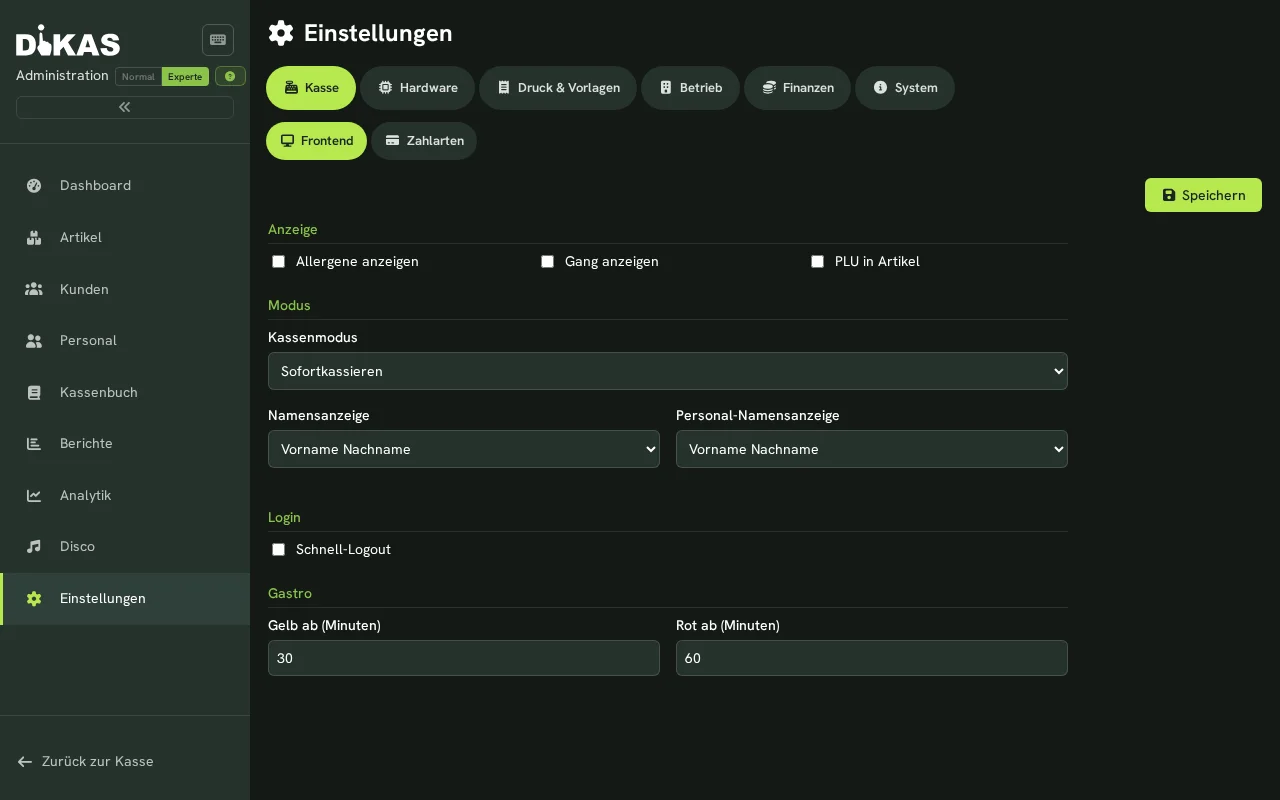
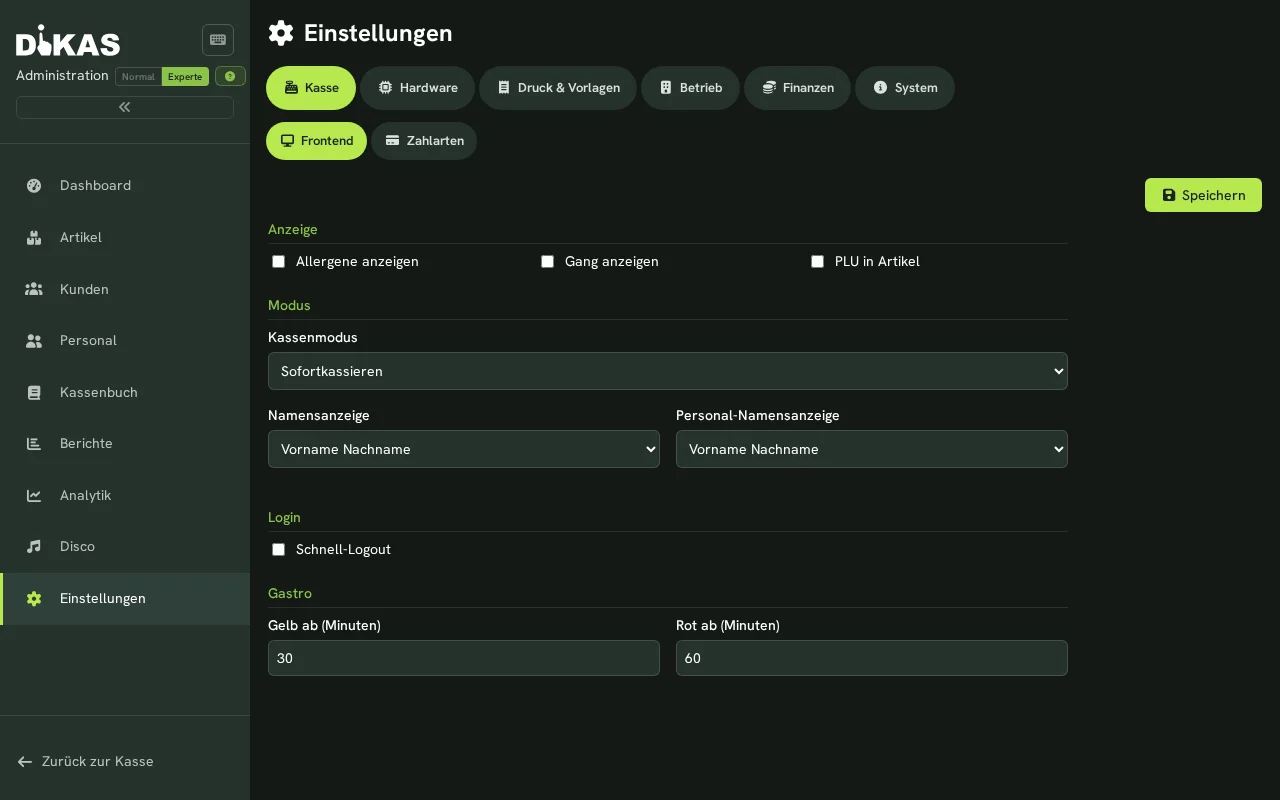
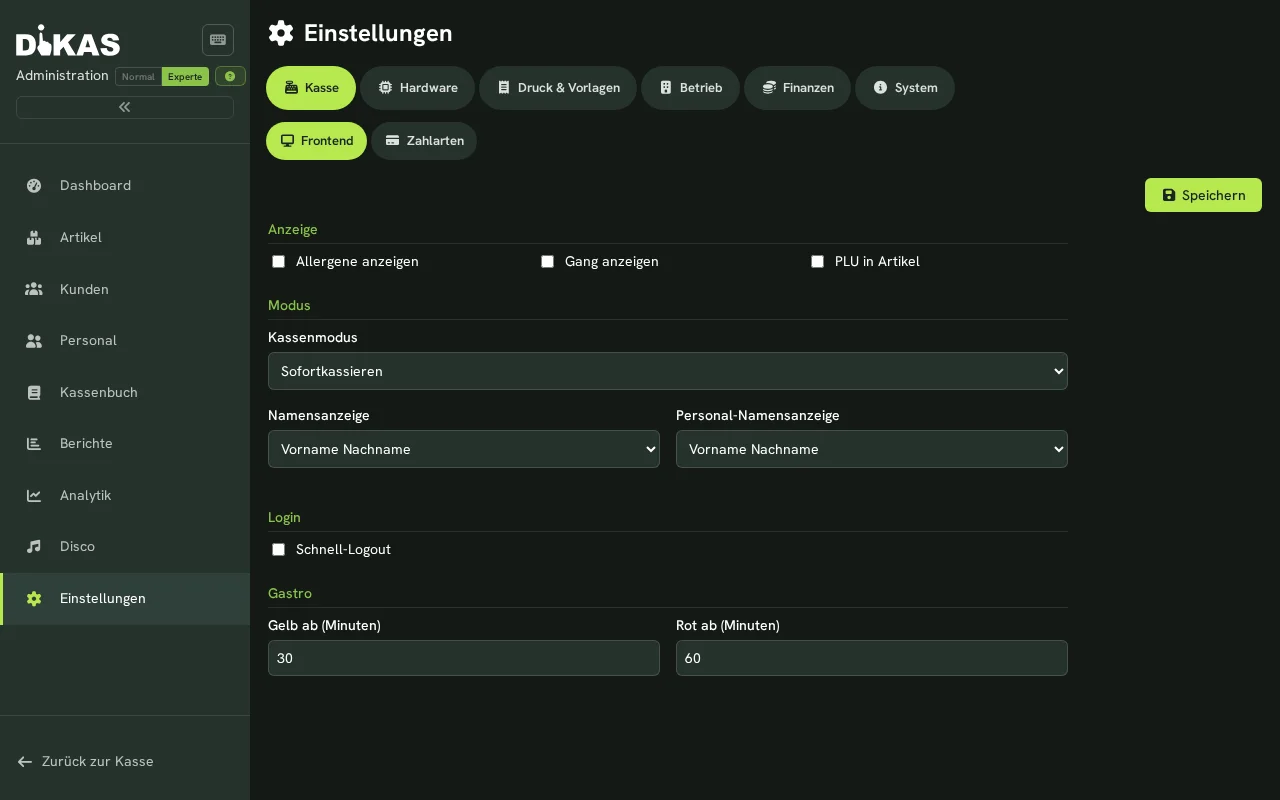
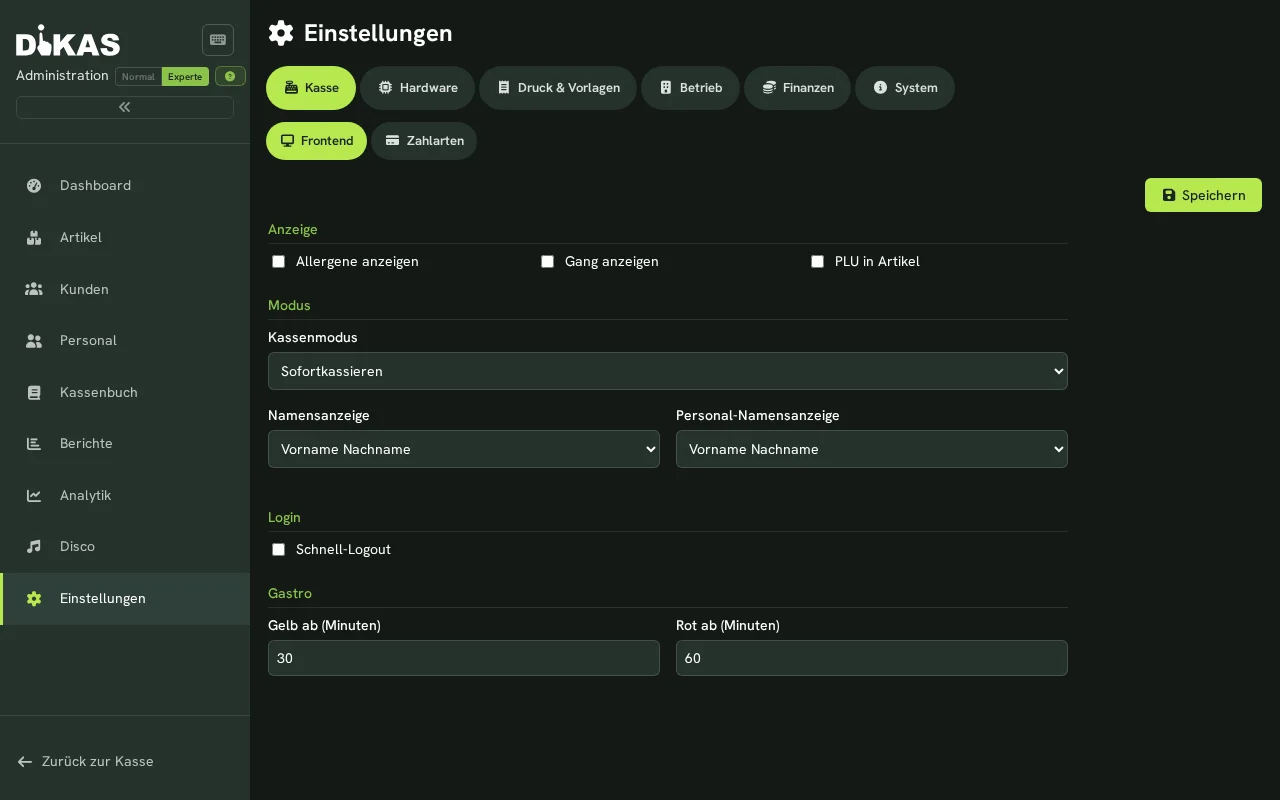
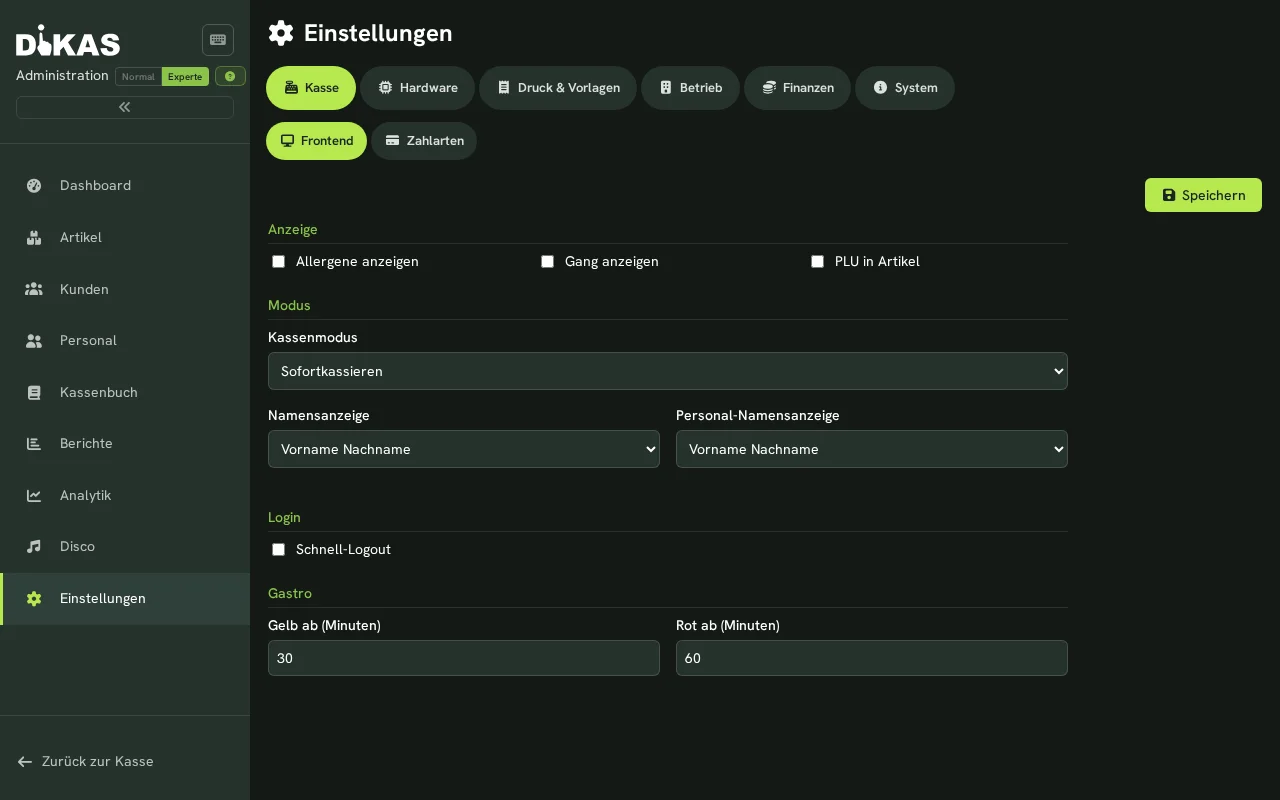
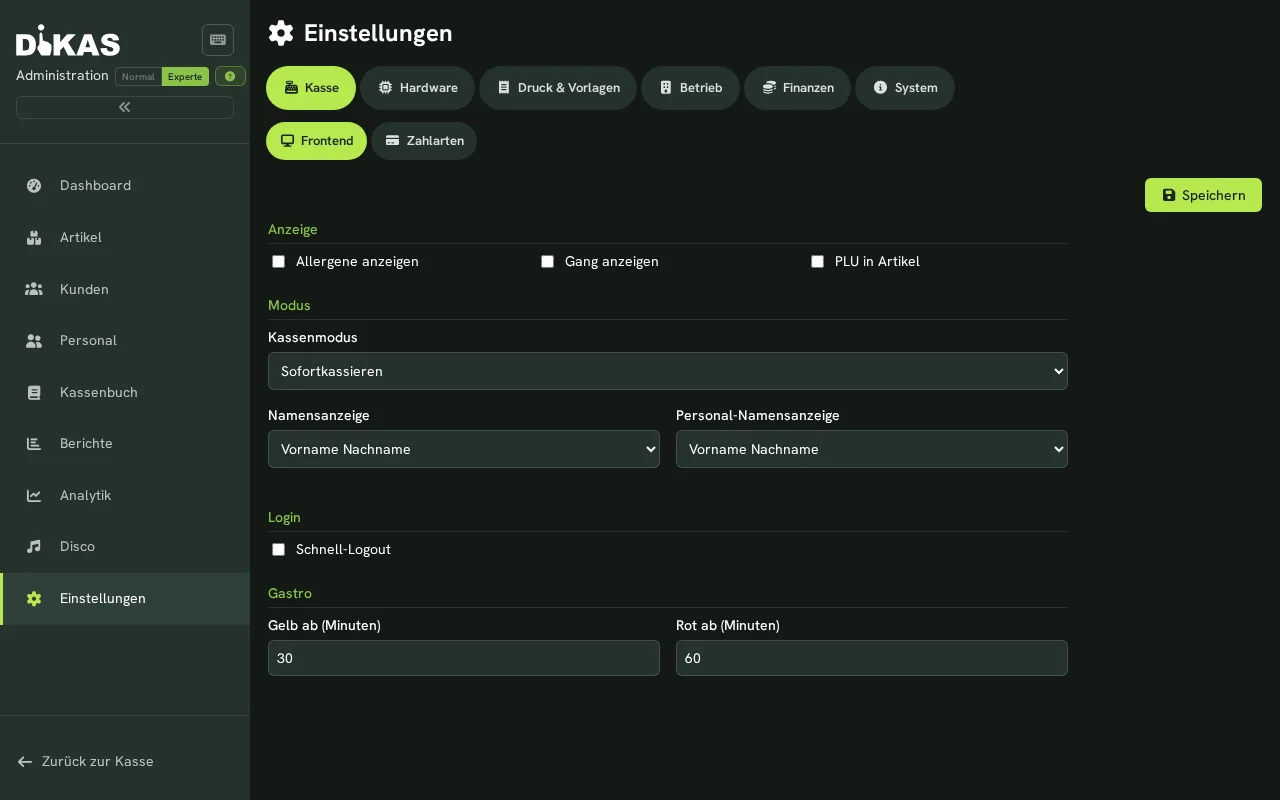
💡 The Normal/Expert toggle (top right) reduces the view: in Normal mode each category shows only its core sub-tabs (e.g. POS → Frontend/Payment types, Finance → Tax rates/TSE). Expert mode reveals all ~46 sub-tabs. Each category has a short intro box at the top, and cryptic options carry help icons (?).
Structure of the Settings¶
The settings are organized in categories with multiple sub-tabs each (not a flat tab list). The most important:
| Category | Sub-tabs (selection) |
|---|---|
| POS | POS mode/display, payment methods, customer display |
| Hardware | Printers, card terminals (ZVT & Tap-to-Pay/SoftPOS), draught systems, scales & labels, cash machines, caller ID |
| Print & Templates | Receipt designer, PDF templates, email (SMTP + templates), WhatsApp |
| Operations | General (currency, business day, auto end-of-day, printing, feature modules), delivery service, self-order, service areas, workstations, allergens, services (E2N, AI import, address services), misc |
| Finance | Tax rates, TSE/export, DATEV, cash register notification |
| System | License & server info, API keys, data import, cloud sync, backup/restore, audit log |
ℹ️ Important notes: - There is no "General" tab with business data/logo — license/business data is under System → System. The database provider cannot be changed here (display of license/version only). - Tabs like Delivery Service, Self-Order, Workstations, Customer Display, Alarms only appear when the respective feature is enabled. Feature modules under "Operations → General" are only visible when the matching plugin is loaded. - There are three separate configurations with their own Save: Operations (OperationalConfig), Display (FrontendConfig) and Server/Services (BackendConfig). For password/API key fields, leaving blank = unchanged (or clears the value).
1. General¶
Business Data (read only)
Business name, address, tax number and VAT ID are automatically taken from the license and cannot be changed here. For change requests, please contact DiKAS support.
The business data appears on receipts, invoices and in the TSE signature.
| Setting | Description |
|---|---|
| Business Name | From license — printed on receipts and invoices |
| Address | From license — street, postal code, city |
| Tax Number | From license — mandatory information on receipts (§ 6 KassenSichV) |
| VAT ID | From license — if available |
| Logo | Printed on receipts (bitmap, max. 576px wide) |
Currency & Tax Rates¶
| Setting | Description |
|---|---|
| Main Currency | Default: EUR. Enter a three-letter currency code (e.g. EUR, CHF). "€", "Euro" and "EUR." are recognized as EUR; any other spelling such as "Fr." is not recognized as a currency and makes the DATEV export stop for invoices, receipts or expenses. New invoices are issued in this currency; for subscriptions and credit notes see Subscriptions and Invoices |
| Tax Rate Periods | Date-based tax rates (standard / reduced) |
Tax rate periods allow storing historical tax rates (e.g. the temporary VAT reduction in 2020). DiKAS automatically selects the rate valid for the booking date.
Payment Methods¶
Each row is one payment method. The mask is labelled in German; the column "Bondruck" (receipt printing) decides whether the POS prints a receipt for that method: "Rechnung" (invoice) = a receipt is printed, "Keine Rec" (no receipt) = none is printed.
Keine Rec means: no receipt
If a payment method is set to "Keine Rec" in the "Bondruck" column, the POS prints no receipt for it — not even when automatic receipt printing is switched on.
This mainly concerns the payment method "Überweisung" (bank transfer): it is created automatically as soon as the first invoice is issued, and it is set to "Keine Rec" — an invoice does not need a till receipt. If you do want one, set the "Bondruck" column in the "Überweisung" row to "Rechnung" and save.
With a split payment one share is enough: as soon as one of the payment methods involved wants a receipt, one is printed.
Allergens¶
Service Areas¶
Workstations¶
2. Operations¶
Operational configuration and feature toggles:
Printing¶
| Setting | Description |
|---|---|
| Auto Print | Controls automatic receipt printing after payment: Off, Always print, Kitchen only or All printers |
| Auto-print receipt from amount (€) | Minimum amount (gross) above which the receipt is printed automatically. Below this amount no automatic print happens (saves paper on small amounts). 0 = always print. Manual printing/reprinting is unaffected |
| Auto-print void receipt | Automatically print a void receipt on cancellations |
| End-of-day: print void receipts | Include void receipts in the end-of-day printout |
Minimum amount combined with Auto Print
The minimum amount works in addition to the Auto Print mode: if Auto Print is off, nothing prints anyway. If it is active, printing only happens from the configured amount upwards.
Business Day¶
| Setting | Description |
|---|---|
| Business Day Start | Hour at which a new business day begins (default: 6:00 AM) |
| Auto End-of-Day active | On/off switch for the automatic Z-report. Off = no auto close, time field hidden |
| Time | Only when the switch is on: fixed time for the automatic Z-report (e.g., 03:00) |
| Auto Clock Out | Automatically clock out employees at end-of-day |
Use deposit¶
| Setting | Description |
|---|---|
| Use deposit | Switch. Off: DiKAS hides everything about deposits in day-to-day operation. On: deposits are available at the till, in article maintenance and in reports |
What disappears when off: the Take back empties button at the till, the article type Deposit and the deposit fields in the article editor (an article that already carries a deposit keeps the field visible), the deposit assignment for article groups, and the Deposit & empties tab in reports.
Existing businesses stay unchanged
If the switch was never saved, it is on when your business handles deposits (an active deposit article or an article with a deposit amount), otherwise off. Only your explicit choice is permanent; saving other settings does not change it.
What the switch does not do
It only hides the operation. Deposits already booked, existing receipts and open bills with deposit stay unchanged, and deposit lines in the cart and on receipts remain visible because they are part of the total. Remove deposit amounts from articles before switching off.
Practice Mode¶
| Setting | Description |
|---|---|
| Allow practice mode | Switch, off by default. When on, the Practice mode section appears in the till settings; an administrator starts a practice session there (POS → Settings → Practice mode) |
In practice mode a POS workstation works for a limited time on a fresh practice business with practice data. Nothing is created in the live business: no receipt, no revenue, no stock movement, no report to any authority. Receipts from practice carry the imprint "PRACTICE — not a receipt". Procedure and practice tasks: Staff training.
Practice system not set up
If the checkbox is greyed out and says that no practice system is set up for this environment, practice mode cannot be switched on. Write to support@dikas.de – support will set up the practice system.
Enable / Disable Features¶
| Feature | Description |
|---|---|
| Kitchen Display | Kitchen Display System (KDS) |
| Expense Recording | Record expenses in the POS |
| Time Tracking | Time clock for employees |
| Inventory Management | Stock management for articles |
| Customer Display | Customer-facing display at the POS |
| Online Ordering | Webshop integration |
| Workstations | Manage multiple register stations |
| Finance | Banking and invoicing module |
| HACCP | Hygiene documentation |
| Disco | Club management |
Pager¶
| Setting | Description |
|---|---|
| Pager | Where the pager number comes from: Manual — the till asks for the pager number (default), for venues with real pagers whose number is printed on the device. Automatic — number is assigned — the server assigns a consecutive number per business day (100–999, like the pickup numbers); the till asks nothing. |
This setting only answers where the number comes from. Whether a sale gets one at all is decided by the article switch "Ask for pager ID on payment" (see Articles; tab "General", only in the Expert view mode). If no such article is on the ticket, nothing happens in either mode.
→ In detail: Pager
Split table orders¶
| Setting | Description |
|---|---|
| Split table orders after (minutes) | Kitchen display: 0 = off — a table stays one card with everything on it. Otherwise every booking that arrives more than X minutes after the start of the current wave begins its own card with its own age and its own "done". Typical value: 5. |
The field only appears when the Kitchen monitor module is licensed and switched on in the module list.
→ In detail: Later orders as their own card
Table Cleaning Requirement¶
| Setting | Description |
|---|---|
| Cleaning Requirement | After payment: table is marked purple (status "Cleaning") |
| Process | Employee scans/clicks → table becomes free again |
Customer Credit¶
| Setting | Description |
|---|---|
| Top-up Bonus % | Percentage bonus on credit top-up |
| Top-up Bonus Amount | Fixed amount as bonus |
| Card Deposit | Deposit for customer card |
| Play area wristband deposit | Deposit per NFC wristband in the play area, charged at entry and refunded when the guest leaves (0 = off) |
| Validity Days | Days a customer card is valid |
Points¶
| Setting | Description |
|---|---|
| Points per Euro | How many points are earned per euro of revenue |
3. 🖨️ Printers¶
Configure receipt printers (ESC/POS compatible):
| Setting | Description |
|---|---|
| Name | Freely selectable (e.g. "Kitchen Printer", "Bar") |
| Type | Local (USB), Network (IP), Client, A4 (CUPS) |
| IP / Port | Network address (default port: 9100) |
| Receipt Width | 58 mm or 80 mm |
| Character Set | Codepage (default: 858). Receipt printers do not support Windows character sets such as 1252 in normal operation — DiKAS then prints in the standard character set automatically so umlauts come out right. |
| Backup Printer | Fallback in case of failure |
| Disabled | Temporarily disable the printer |
Printer Types¶
| Type | Description | Use |
|---|---|---|
| Local (0) | USB printer on the computer | Single-station POS |
| Network (1) | IP printer on the network | Standard for hospitality |
| Client (3) | Printing via client app | Mobile devices |
| A4 (4) | A4 printer via CUPS | Invoice printing |
| Device printer (5) | Built-in receipt printer of an Android handheld (guide) | Mobile POS |
Printer Search¶
Click "Search for printers" to automatically scan the local IP range (/24 of the server) for network printers on port 9100. Found printers are listed with IP address and — where determinable — hostname; clicking "Apply" adds the printer to the configuration. A4 printers (type 4) are additionally set up via the local hardware bridge (DikasArch/CUPS) if available — the CUPS printer name is automatically transferred.
💡 The scan may take a moment, as every address in the subnet is checked.
Default Printers¶
| Setting | Description |
|---|---|
| Default Printer | For receipts |
| End-of-Day Printer | For Z-reports |
A4 Direct Print (PDF)¶
An "A4 print" button is available in the receipt and print dialog. If DiKAS is running on a kiosk or workstation with a local DikasArch bridge and at least one A4 printer (type 4, CUPS) is configured, the PDF is printed directly at the local A4 printer — if multiple A4 printers are available, a selection dialog appears. If no bridge is available, the server-side print service alternatively prints, or the PDF opens for preview in a new browser tab.
In cloud mode, A4 printing — provided the location is reachable via a local DiKAS instance — can be printed directly at the location without the PDF opening in the browser. On the first A4 print, you are asked whether printing should happen "Locally at the location" or "Via the server" (browser tab); the selection is saved. The preferred print destination can be changed at any time under POS Settings → "A4 print destination".
4. Receipt Templates¶
Template Types¶
| Type | Description |
|---|---|
| Invoice Receipt (0) | Receipt for the guest |
| Consolidated Order Ticket (1) | Order overview for the kitchen |
| Station Ticket (2) | Additional print (e.g. bar, counter) |
| Void Receipt (3) | For voids |
| End-of-Day Report (4) | Z-report |
| Voucher (5) | Voucher print |
Customizable Elements¶
Each template can be individually designed:
| Element | Description |
|---|---|
| Header Lines | Freely definable lines above the receipt content |
| Footer Lines | Freely definable lines below the receipt content |
| Logo | Show yes/no |
| QR Code | QR code on the receipt (e.g. for reviews) |
| TSE Data | TSE signature, transaction number, serial number |
| Tax Breakdown | Net/gross/VAT per tax rate |
| Payment Details | Payment method, change |
| Article Sorting | By course, group or receipt order |
| Fonts | Separate for groups, articles, options |
Receipt Designer¶
The visual receipt designer shows a live preview of the receipt with:
- Template type tabs (Invoice, Consolidated Order Ticket, Station Ticket, Void)
- Drag & drop for header/footer lines
- Font size selection
- Print simulator (test print)
5. 💳 Terminals (EC / Card Payment)¶
Adding a Terminal¶
| Setting | Description |
|---|---|
| Name | Label (e.g. "Card Terminal Counter") |
| Type | ZVT, SoftPOS or Simulator |
| IP Address / Port | Terminal IP or port — only for ZVT (default port 20007) |
| RS2 Terminal ID | Only for SoftPOS: the terminal ID from the Beyond SoftPOS activation (e.g. RS2001C5) |
| Environment | Only for SoftPOS: test (QA) or production |
| Merchant Email | Only for SoftPOS: the merchant account's email |
| "Check status" | Checks connection/readiness (green = connected) — works for ZVT and SoftPOS |
Terminal Types¶
| Type | Description | Connection |
|---|---|---|
| ZVT (0) | Classic card terminal (Ingenico, CCV, Verifone) | TCP/IP |
| SoftPOS (1) | Tap-to-Pay: the Android device itself as a contactless card terminal — certified technology of our partner RS2 | Android app/intents |
| Stripe Terminal (2) | Stripe card reader (Reader ID tmr_…), controlled server-side via the Stripe cloud — works even without a hardware agent |
Stripe cloud |
| SumUp Reader (4) | SumUp Air/Solo via your SumUp account; paired via pairing code (dedicated SumUp tab for API key and merchant code) | SumUp cloud |
| Simulator (99) | Test terminal without real payment (rejects every 2nd transaction) | Local |
ℹ️ For Stripe Terminal you enter the Stripe secret key and the location ID — the same credentials used for online ordering. Which terminals exist and which one fits your business: Hardware → Card Terminals.
Device Search (ZVT Terminals)¶
Click "Search for devices" to scan the local IP range (/24 of the server) for ZVT-capable card terminals on port 20007. Found devices appear with IP address and hostname in a list; "Apply" transfers IP and name directly into the terminal form. The scan runs in the background and may take a moment depending on network size.
Terminal Actions¶
- Pairing: Connect reader with the POS
- Status: Check connection
- Settlement: End-of-day total on the terminal
6. 🔐 TSE (Technical Security Device)¶
Mandatory in Germany since 2020 (§ 146a AO):
| Setting | Description |
|---|---|
| TSE Enabled | TSE signing on/off |
| TSE Type | Hardware (Swissbit) or proxy server |
| TSE Server | URL of the TSE proxy (e.g. Fiskaltrust) |
| POS Serial Number | Unique identifier of the register |
| Client ID | TSE client identification |
| Fiskaltrust | Use Fiskaltrust middleware |
DiKAS signs all POS-relevant transactions: receipts (Kassenbeleg-V1), orders (Bestellung-V1) and other transactions such as shift changes and end-of-day reports (SonstigerVorgang).
7. Email¶
SMTP Configuration¶
| Setting | Description |
|---|---|
| SMTP Server | e.g. smtp.gmail.com, smtp.ionos.de |
| Port | 587 (STARTTLS) or 465 (SSL) |
| Username | Email address or account name |
| Password | Email password or app password |
| Use SSL | TLS/SSL encryption |
| Sender Name | e.g. "Pizzeria Da Mario" |
| Sender Address | e.g. info@pizzeria-mario.de |
| Invoice Sender | Separate address for invoices (optional) |
SMTP Detection: Simply enter your email address and DiKAS will attempt to automatically determine the correct SMTP settings.
Email Templates¶
Under the email tab you can edit templates for various occasions:
| Template | Usage |
|---|---|
| invoice | Invoice delivery |
| invoice_debit | Invoice delivery with SEPA direct debit |
| dunning1 | Payment reminder (dunning level 1) |
| dunning2 | Dunning notice (dunning level 2) |
| dunning3 | Final dunning notice (dunning level 3) |
| voucher | Voucher delivery |
Each template has a subject and HTML body with placeholders (→ Dunning).
Test Mode¶
| Setting | Description |
|---|---|
| Suppress Emails | Do not send real emails (test mode) |
| Redirect Address | Send all emails to this address instead of to customers |
8. DATEV¶
DATEV export configuration for the tax advisor:
| Setting | Description |
|---|---|
| Client Number | DATEV client |
| Advisor Number | Tax advisor number |
| Account Length | 4 or 5 digits |
| Revenue Account | Main account for revenue |
| Tax-Free Account | Account for 0% revenue |
| Card Clearing Account | Transit account for card payments |
| Expense Account | Default account for expenses |
| Article Group Mapping | Article groups → account mapping |
| ZIP Password | Encryption of the export file |
| Tax Advisor Email | For direct delivery |
| Tax Advisor Name | Displayed in the email |
| Include Expenses | Include expenses in DATEV export |
→ DATEV Export for details
9. ⚙️ System¶
Backend¶
Database & Synchronization¶
The database provider (CouchDB, SQLite or SQL Server) is set during server installation/configuration — it cannot be changed via the settings interface. The System tab shows only license, server version, and environment.
Cloud synchronization (multi-device) is configured via a separate "Cloud-Sync" tab (visible with support login only). The tab behaves differently depending on the database provider:
- SQL mode (SQLite/SQL Server): Push/pull synchronization of selected document types with the cloud CouchDB. Connection, interval, and document types are configurable; for legacy data in the cloud, a migration assistant guides through the transition.
- CouchDB mode (local installation): Native CouchDB replication — continuous and bidirectional for
maindbandgastrocurrent. The connection is set up automatically at server start from the license (SyncLink); stale replication entries pointing at the same database/server are cleaned up. The tab shows the state of the replication jobs and can re-check the setup on demand. No manual configuration is needed (a filledSyncsection inappsettings.jsonoverrides the license).
The cloud multi-tenant version has no synchronization — all devices work directly on the central database.
Audit Log¶
Log of all system changes. Audit logs can be downloaded as a file:
- Admin → Settings → System → "Audit Log"
- Select date → Download
API Keys¶
Backup & Restore¶
Your data is backed up automatically via the DiKAS Cloud — no manual backup, no download. Should a restore be needed, DiKAS Support takes care of it.
Draught Systems¶
If tap systems are used:
Admin → Settings → Draught Systems
Configure a System¶
| Setting | Description |
|---|---|
| Name | Label for the system |
| Protocol | Gruber, Addimat, Hogatron, Simulator |
| Connection | Serial (COM), TCP, UDP |
| IP / Port | Network address |
| Reset at End-of-Day | Automatically reset counters |
Protocols¶
| Protocol | Description | Checksum |
|---|---|---|
| Gruber | STX/ETX framing, ENQ handshake | XOR |
| Addimat | STX/ETX framing | XOR-CRC |
| Hogatron | Configurable field lengths | — |
| Simulator | Test mode without hardware | — |
Each system is displayed as a status card (Online/Offline) with debug information and reconnect function.
AI Import (optional)¶
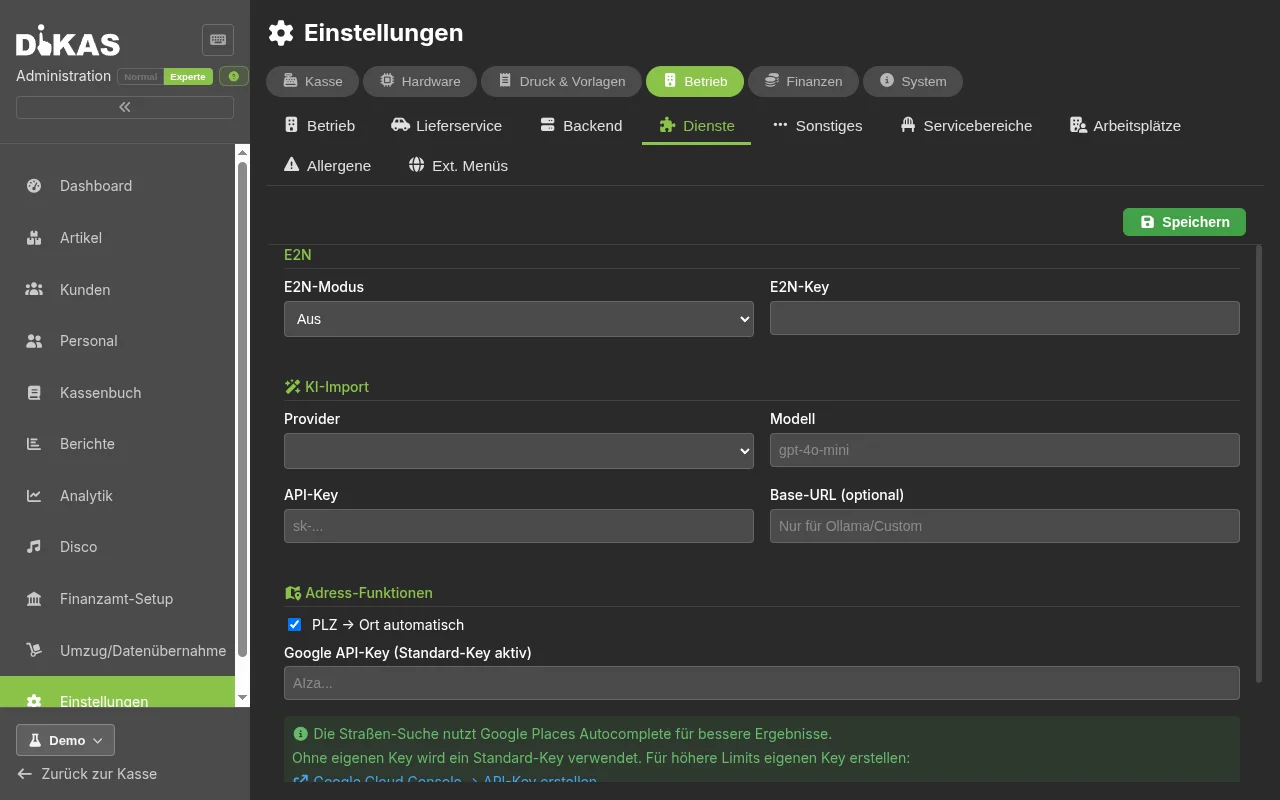
Powers intelligent article import with AI-assisted column recognition, as well as AI recognition of menu photos/PDFs (name, price, VAT class suggestion, allergens):
Admin → Settings → Operations → Services
| Setting | Description |
|---|---|
| Provider | OpenAI, Anthropic, Gemini, Ollama (local) |
| API Key | Your API key with the provider |
| Model | e.g. gpt-4o-mini, claude-sonnet-4-5, gemini-2.0-flash, llama3.2-vision (Ollama) |
| Base URL (optional) | For Ollama/custom providers only: local server address |
Without your own API key, 2 free AI imports are available for photo/PDF import via the DiKAS key — after that, your own API key is required.
→ Data Import for details on article import and the correction loop
FinTS / Online Banking (optional)¶
For automatic bank statement retrieval:
| Setting | Description |
|---|---|
| Bank Code | Bank sort code |
| FinTS URL | FinTS server of the bank (automatic via bank code) |
| User ID | Online banking credentials |
| PIN | Online banking PIN |
| IBAN | Account IBAN |
| BIC | Bank identification |
| Account Holder | Name |
| TAN Method | pushTAN, chipTAN, smsTAN, etc. |
→ Banking & SEPA for details
Alarms for Online Transactions (optional)¶
The Alarms tab appears when the feature is enabled. Here you define which alarm sound plays on the local device for certain online events.
| Setting | Description |
|---|---|
| Alarm on reservation | Alarm type that plays on the local device when an online reservation arrives. Leave empty = no alarm |
How it works
When a new table reservation comes in via the web shop, the cloud immediately forwards a notification to the local machine (relay). The selected alarm is then played on the local device — similar to a waiter-call signal. Staff are alerted to new reservations even without looking at the screen.
Self-Order (optional)¶
Enable Self-order and/or QR table ordering under Operations → Operations in the module list. After saving, the corresponding tabs appear in the Operations category. The full tab selection is visible in the Expert view mode.
The complete guide QR ordering, self-service & pickup numbers walks through setup, the guest flow, kitchen, pickup and the number display. Table ordering by QR code for guests is also described in Table Self-Order.
The section headings of the Self-order tab are shown in German in every language; the English meaning is given in brackets.
| Area | Use |
|---|---|
| QR table ordering | Set automatic confirmation, PrePay and renewal of the table codes; create and print the codes under Service areas |
| Self-order → „Kiosk-Login" (kiosk login) | Store the username and password the kiosk uses to sign in |
| Self-order → „Automaten" (kiosks) | Per kiosk: name, its own card terminal and an optional receipt printer; copy the full device address |
| Self-order → „Abhol-Monitor" (pickup monitor) | Copy the address for a separate number screen and open it there; sign in if needed |
| Self-order → „Verzehr" (consumption) | Choice "eat in / take away" or operation without tables |
| Self-order → „Küche & Ausgabe" (kitchen & pickup) | Decide whether pure food orders are finished once the kitchen confirms them |
| Self-order → „Erlaubte Artikelgruppen" (allowed article groups) | Limit what the kiosk offers; without a selection all active groups are shown |
Using the gear icon of the pickup monitor you can choose your own logo (PNG, JPEG or WebP, at most 5 MB). Without your own logo the DiKAS logo appears. The device time is shown on the right of the header. Logo and hide time are saved for this browser.
The hide time for finished numbers is set with the gear icon of the pickup monitor (1, 2, 5, 10 or 15 minutes). Staff mark orders as finished under Kitchen → Pickup. The monitor itself is display only.
The public number page for guests' phones shows the same pickup numbers without sign-in and keeps finished numbers on screen for five minutes.
Customer Display (optional)¶
The customer display (also called the amount display, in the product Betragsanzeige) is a second, customer-facing screen at the POS. While ringing up it shows the running cart, after payment the receipt with a QR code, and while idle a slideshow of images and videos (ads, daily specials, logo).
Enable: tick Customer display in the module list under Admin → Settings → Operations → Operations (section Modules, group Till & output). The customer display does not need a separate licence component.
Without the tick there is no pairing
Pairing takes place at the POS in the Customer display section of the local settings (see How to pair at the POS). This section only appears if the Customer display module is active. The only exception is a DiKAS box with a second monitor: there the display connects by itself and the tick is not needed.
Prepare media before the display is in place
The Till → Customer display tab is always visible — also in Normal mode and also while the customer display is still switched off. So you can prepare images and videos at your leisure and connect the display afterwards.
What does the display show — and where?¶
| Area | What the guest sees |
|---|---|
| Till (direct sale, settling a table) | the items just entered with the total; after payment "Vielen Dank!" (thank you), receipt number, amount and a QR code to the digital receipt |
| Disco: bar | the open tabs of the guest whose card is on the reader plus the items just entered, with the total |
| Disco: cloakroom | the cloakroom items of the active guest with the total |
| Disco: check-out | all open tabs of the guest — for merged cards, those of all cards — with the grand total |
| Disco: till (settling a blocked card afterwards) | the items of the blocked card and the amount to be paid |
In the disco the display shows no receipt QR code: when the booking is complete or no card is on the reader any more, it returns to the welcome screen or the slideshow. Kitchen, self-order, hotel and the other areas do not drive the display. The Bluetooth display (see below) only works with the till, not with the disco.
Which device shows the display?¶
| POS station | Customer screen | Setup |
|---|---|---|
| DiKAS box (appliance) | second monitor directly on the box | sets itself up when switched on |
| Windows (POS computer or client) | second monitor directly on the PC | start the DiKAS Betragsanzeige shortcut, pair the code |
| DiKAS Windows client in full-screen mode | second monitor directly on the client PC | switch on once in the client, then no pairing needed |
| Cloud POS, tablet, TV stick, second PC | separate device with a browser | open the address and pair once |
| Android app (over the network) | second Android device on the same network | tile Betragsanzeige → Mit Server verbinden (connect to server), pair the code |
| Android app | second Android device via Bluetooth | tile Betragsanzeige → Bluetooth, then switch it on at the POS |
How to pair at the POS¶
All routes with a pairing code (browser, tablet, Windows shortcut) end here:
- At the POS open the main menu and choose Settings (the page is called Local Settings, "Lokale Einstellungen").
- In the Customer display section tap Pair display ("Display koppeln"). The window Available displays ("Verfügbare Displays") lists every display that is currently showing its code, with "Registered … ago" ("Registriert vor …").
- Tap the display with the code shown on the guest screen. The POS reports "Display paired" ("Display gekoppelt"); the section then shows Code: … and a Disconnect button ("Trennen").
- Return to the POS: as soon as the POS sends its first cart, the guest screen switches from the code to the welcome screen or the slideshow.
While a paired Code: … is shown in the section, Pair display is only offered again after Disconnect.
The pairing applies to this POS device only (it is remembered in the browser or app of this device). If several POS stations each have their own guest screen, each POS pairs with its own display separately. If the POS's browser storage is cleared, the pairing is gone too.
DiKAS box: nothing to set up¶
If a second, customer-facing monitor is connected to the DiKAS box, the box detects it and shows the amount display there by itself — no address, no pairing code, no tick in the modules. For this the box must be set up and running in POS operation (full screen, as delivered).
In the POS's local settings the Customer display section then shows "Automatisch gekoppelt (2. Bildschirm der Kasse)" (automatically paired, 2nd screen of the POS) — there is nothing to pair and nothing to disconnect. If the monitor is unplugged, the box closes the display by itself after a few seconds.
Connect the monitor before switching on
The POS only receives the assignment between POS and display at start-up. If the monitor is plugged in only while running, the box does open the display after a few seconds — but it then shows only the welcome screen or the slideshow and no amounts. Remedy: restart the box.
Windows: the "DiKAS Betragsanzeige" shortcut¶
On Windows a dedicated shortcut for the guest screen is provided — in the Start menu and on the desktop, created by the setup. It belongs to the POS computer and to the Windows client. Its name is German on every system: DiKAS Betragsanzeige (DiKAS amount display).
- Connect the second monitor and enable it in Windows.
- Start DiKAS Betragsanzeige. The window opens full-screen on the second monitor and shows a six-digit pairing code.
- At the POS pair the code as described under How to pair at the POS.
The POS stays on the first screen; the second shows the cart, the total and, after payment, the receipt QR code. The prerequisite is the Customer display tick in the modules.
Start automatically at sign-in
Esc closes the display again. To have it come up by itself in the morning, put the shortcut
into the startup folder: press Windows+R, enter shell:startup and copy the
DiKAS Betragsanzeige shortcut into it.
Without a second monitor
If only one screen is connected, the display opens on that one — handy for trying it out, but in operation it covers the POS. Esc closes it.
DiKAS Windows client: amount display on the second monitor¶
If the Windows client runs in full-screen mode anyway, it can also drive the second monitor without a pairing code — it then starts the display along with itself. Three things are needed:
- The second monitor is connected and enabled in Windows before the program starts.
- The client runs in full screen (kiosk mode).
- The setting for the amount display on the second screen is switched on.
The client's connection dialog is in German. Proceed as follows:
- In the client open the menu "DiKAS Client → Verbinden…" (connect) and click "Einstellungen dieses Arbeitsplatzes" (settings of this workstation).
- Tick "Vollbild (Kiosk-Modus)" (full screen, kiosk mode) and restart the client using the button offered.
- Open the dialog again — now "Betragsanzeige auf zweitem Bildschirm" (amount display on second screen) appears. Tick it, save and reconnect.
The main screen remains the POS; the second shows only the amount display. As with the box, the POS receives the assignment when connecting: if the monitor is plugged in later, reconnect in the client or restart the client.
Why the setting is sometimes missing
In normal window mode and when only one screen is detected, the option is deliberately hidden: a second full-screen window belongs at a real POS station, not at an office PC. In this case the dialog explains which step is still missing. In window mode use the DiKAS Betragsanzeige shortcut instead (see above).
Android: amount display over the network¶
An Android device can also show the display over the network, without Bluetooth. It is paired like a tablet in a browser (six-digit code) and — unlike the Bluetooth display — also serves the disco areas. Prerequisite: the device reaches the POS on the same network (for a cloud POS, internet is enough).
- In the Android app, choose the tile Betragsanzeige (amount display) and tap Mit Server verbinden (connect to server) in the mask.
- Tap the server in the list. If it is missing, enter the address of the POS under oder manuell verbinden (or connect manually),
for example
192.168.1.50—https://, a port and a path are not needed. - The device shows a six-digit pairing code. Pair it at the POS as described under How to pair at the POS.
Role and address are remembered; the role can be changed in the app's settings.
Keep the screen on
Switch off the screen timeout in the Android settings (or set it to the longest time) and keep the device permanently on power — otherwise a black guest screen stands there in the middle of the evening.
Android: Bluetooth display¶
A second Android device (for example an old smartphone) can serve as a guest screen without a shared network — the POS sends the cart and receipt via Bluetooth. This only works with the till in the Android app, not with the disco.
- On the display device, choose the tile Betragsanzeige (amount display) in the Android app at start-up and tap Bluetooth in the mask. (The role is remembered; it can be changed in the app's settings.) The device stays switched on and shows Kundenanzeige (Bluetooth) (customer display, Bluetooth); confirm the Bluetooth permissions.
- At the POS (Android app) switch on BT-Kundenanzeige (zweites Gerät per Bluetooth) (Bluetooth customer display, second device via Bluetooth) under Settings → Customer display ("Einstellungen → Kundendisplay"). The Customer display module must be active for this, otherwise the section is missing.
- With the first cart, the POS makes itself visible to the display device; Android asks once for Bluetooth permissions.
- On the display device tap the POS in the list. If it is missing, tap Search again ("Neu suchen").
The display device remembers the chosen POS and connects by itself in future. The switch applies to this device only and is off by default.
Set it up yourself: display in the browser¶
This route works with any device that has a browser and can reach the POS over the network — tablet, TV stick, old laptop, second monitor on a small mini PC. It is also the route for the Windows POS computer and for a POS in the cloud. Two browser windows on one computer work as well: drag the display window to the second monitor and switch it to full-screen mode with F11.
Step 1: The right address¶
| Your POS runs… | Address for the display |
|---|---|
| on a DiKAS box, a server or in a container | https://<POS address>/admin/display |
| in the DiKAS cloud under your own address | https://<your DiKAS address>/admin/display |
| on a Windows POS computer | https://<address of the POS computer>/display |
The address changes when opened
On a box, a server or in the cloud, DiKAS forwards /admin/display to the actual address of the
display — the browser then shows /app/display. That is correct; you can keep noting and
entering the address from the table.
Finding the address yourself
Look at how you operate the POS. If the address bar contains /admin, the display address
is /admin/display. If the POS opens directly under the main address, it is /display.
Examples: https://192.168.1.50/admin/display · https://192.168.1.50/display
Use the IP address or network name under which the display device reaches the POS.
localhost and 127.0.0.1 only work directly on the POS computer, never on a tablet or
another PC.
Step 2: The device must reach the POS¶
Both devices belong in the same network (for a cloud POS, internet is enough). As a test, first open
https://<POS address> on the display device: if the sign-in appears, the connection is fine.
The Windows installer is a single-station version
The direct Windows version can only be reached on the POS computer itself. A second monitor on that computer works; a tablet or separate PC, however, is another client. For that, use a VM/ISO appliance as the main POS.
Step 3: Pair once¶
- Open the address in the browser on the customer screen.
- The screen shows a six-digit pairing code (with the German note "Diesen Code in den POS-Einstellungen eingeben" — enter this code in the POS settings).
- At the POS pair the code as described under How to pair at the POS.
The display runs without login (kiosk) and fetches its content automatically — no user needs to be signed in.
Full screen and screen saver
On the display device switch the browser to full-screen mode with F11 and turn off power saving or the screen saver — otherwise the guest screen goes black in the middle of the evening. Also keep a tablet permanently plugged in.
Certificate warning on first opening
With a local installation the browser may warn about a self-issued HTTPS certificate. Only confirm the exception if the address shown really is your DiKAS POS. Then open the display page again.
How long the pairing lasts
The address stays the same. The pairing holds as long as the display stays switched on with its page open (even for days). It is only forgotten if, for more than about 24 hours, neither the display queries anything nor the POS sends anything (display switched off or page closed). After a restart or update of the POS the display registers again by itself after a few seconds (first attempt after about 2 seconds, then every 30 seconds) and briefly shows its code; with the next booking it is paired again. If you reloaded the display page (F5), it shows a new code while the POS still sends to the old one: at the POS first tap Disconnect, then select the display again. If a paired display no longer responds, the POS shows a note about it in the Customer display section of the local settings. (The display on a DiKAS box, by contrast, registers again by itself.)
Display Modes¶
| Mode | Shows |
|---|---|
| Pairing | Pairing code until the display is connected to a register |
| Idle | Slideshow of the uploaded media; without media a "Willkommen" (welcome) screen ("Wir freuen uns auf Ihre Bestellung" — we look forward to your order) |
| Cart | Company name, live line items and total while ringing up |
| Receipt | "Vielen Dank!" (thank you), receipt number, amount and a QR code to the digital receipt; it stays for as long as set at the POS under QR code duration (sec, max. 20) (local settings, Customer display section) — at most 20 seconds — or until the next booking begins |
The company name in the header comes from your licence.
Managing the slideshow and welcome media¶
Under Admin → Settings → Till → Customer display (the page there is headed Willkommen-Bild (welcome image), Slideshow-Bilder (Werbung) (slideshow images, advertising) and Slideshow-Einstellungen (slideshow settings)). This page is labelled in German on every system:
| Action | Description |
|---|---|
| Upload media | Drag & drop or click. Allowed are images (JPEG, PNG, GIF, WebP) and videos (MP4, WebM), up to 100 MB each |
| Welcome media (section "Willkommen-Bild") | A separate image or video for the welcome screen — it is shown first in idle mode, before the advertising images |
| Delete media | Remove individual images or videos from the slideshow |
| Change interval ("Bildwechsel-Intervall (Sekunden)") | Seconds per image (3–120, default 10) |
The media are shown one after another in idle mode and are loaded by the display without login. Newly uploaded media appear on all paired displays within a few seconds. If there is only one medium (only a welcome image, no slideshow), it stays on screen and does not change.
Keep videos short and silent
An advertising video plays without sound and repeats all evening. 10–20 seconds work better than a long film, and a smaller file starts faster on a tablet.
If no amounts appear¶
| What you see | Cause and remedy |
|---|---|
| The guest screen shows a six-digit code | It is not paired yet: pair it at the POS (How to pair at the POS). If the Customer display section is missing in the local settings, the Customer display module is not active. |
| The Available displays ("Verfügbare Displays") window is empty ("Keine unverbundenen Displays gefunden" — no unconnected displays found) | It only lists displays that are currently showing their code and are not yet used by any POS. Reload the display page (F5), check that the device is running and not in standby, then tap Refresh ("Aktualisieren") in the list. |
| The display shows welcome or slideshow, but never amounts | The POS is sending to a different display: either it is paired with another code (first Disconnect, then pair again) or, on a box, the monitor was only plugged in after start-up — restart the box. Also check that the POS and the display use the same DiKAS POS — with several locations or a test address this is the most common cause. |
| The display has shown the same thing for hours (old cart, old picture) | The pairing is gone: the POS was restarted or updated, or the display was off (or its page closed) for more than about 24 hours. The POS then shows a note in the local settings (Customer display section). The page does not notice this by itself. Press F5 — a new code appears. At the POS first Disconnect (as long as the old Code: … is shown there, Pair display is not offered), then pair again. |
| On a box a long, 16-character code is shown | The box is just connecting to the POS, usually only for a few seconds after start-up. If it stays, restart the box. |
| On a box the second monitor stays black | Check cable and monitor, switch the monitor on, then restart the box. The display only appears if the box detects a second monitor. |
| A tablet or separate PC shows nothing at all | Can the POS address be reached from that device? Do not use localhost or 127.0.0.1. For such multi-station set-ups a VM/ISO appliance is intended as the main POS, not the Windows single-station installation. |
| On Windows the display shows nothing new | Close it with Esc and start the DiKAS Betragsanzeige shortcut again. It then shows a code for pairing again. |
| On the client the automatic route should apply | Check the full-screen mode: it only exists there, and the monitor must already be connected when the program starts. |
| The Bluetooth display does not find the POS | Is BT-Kundenanzeige switched on at the POS? Bluetooth on both devices, permissions granted, then tap Search again on the display device. |
Further Options (Quick Reference)¶
These switches and fields exist in the settings but are needed less frequently:
| Option | Location | Description |
|---|---|---|
| Portal active / Portal URL | System | Activate customer portal (online access for invoices/subscriptions) and enter address |
| Stripe / PayPal | Finance | Payment providers for online payments (delivery service prepayment, portal) |
| E2N | Services | Interface to E2N time recording |
| External Customer Search / CheckPrice / Invoice Webhook | Services | Webhooks for ERP integrations: customer search in external system, external price check, notification on invoice creation |
| Voucher serial number format | Operations | Format (numeric/alphanumeric) and length (4–16) of generated voucher numbers |
| Print remaining-value receipt on redemption | Payments | Automatically print a voucher receipt with the new remaining value when paying with a voucher (only if a remaining balance > 0 is left afterward). Off by default |
| Frontend visibility switches | POS → Frontend | Show/hide individual POS menu items/buttons |
| Block below minimum order value | Operations → Delivery | Reject delivery orders below the zone minimum order value instead of adding a surcharge |
| autoShutDownAfterClose | System | Automatically shut down device after end-of-day report (POS PC) |
| closeDayBackendOnly | System | Allow end-of-day report only from the admin area (not at the POS) |
Next Step¶
→ Data Import & Export — Import and back up data
Data management → Cleanup: delete test data¶
Only administrators can use this before live operation. Preview the affected records first, then enter LOESCHEN to confirm permanent deletion. Transaction data and counters are reset; master data, settings, the licence and audit log remain. There is no undo. The action is blocked if any receipt has a fiscal signature or more than 500 receipts exist. Contact support if a test system has already signed receipts.