Emergency Help: When Something Isn't Working
Friday night, the place is packed — and suddenly something's not working? This page is here to help you in exactly that moment. For every problem, you'll find short, plain-language steps and a note on when to call support. No technical commands, no jargon.
The most important rule first
For almost every disruption, the same rule applies: you can keep taking payments. DiKAS doesn't block sales when the printer, terminal, internet, or TSE goes down. Stay calm, keep serving your guests, and sort out the problem on the side.
Receipt Printer Isn't Printing
Symptom: Receipts don't come out, the printer beeps or blinks.
- Check the paper: is a roll loaded? Is the cover properly latched?
- Check the power and network cables on the printer.
- Turn the printer off and back on.
- In the POS, open Menu → Printers: there you'll see the status of every printer and the print queue. Use "Retry all" to re-trigger stuck print jobs.
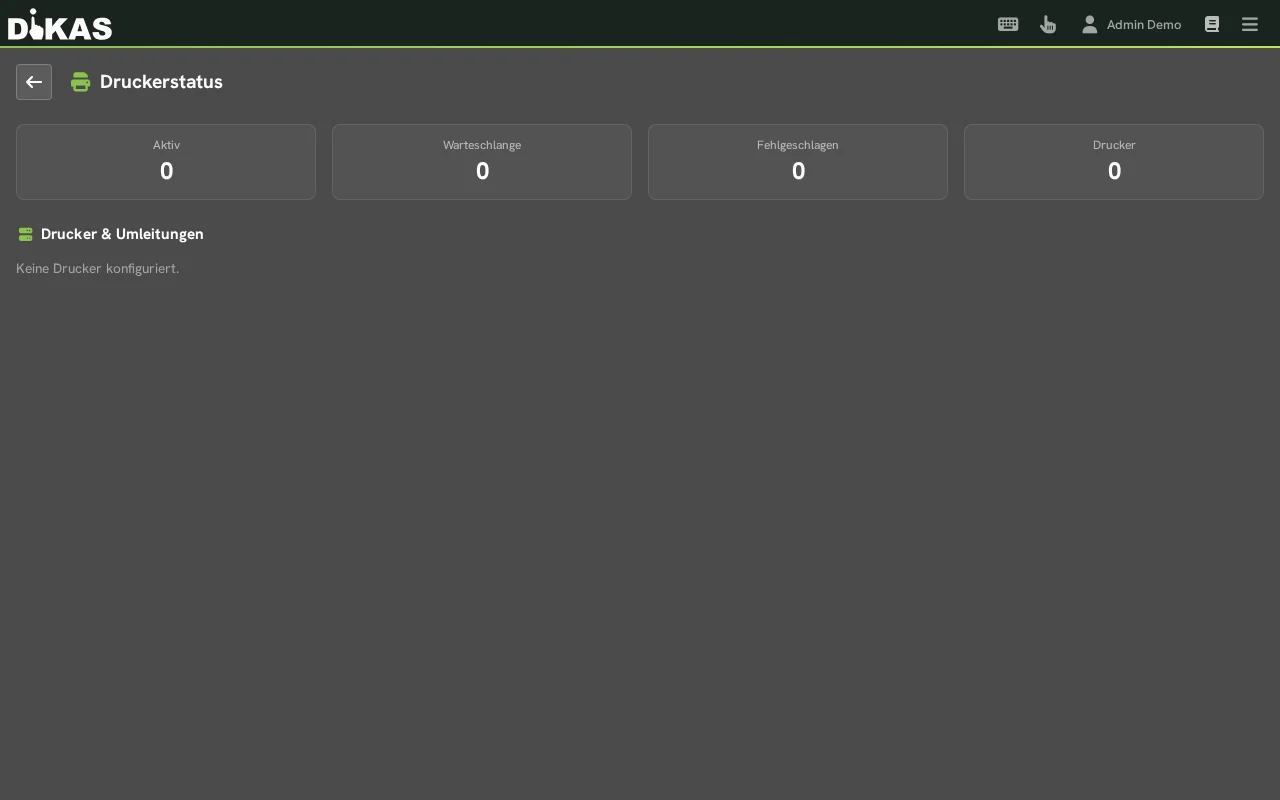
No receipt is ever lost
DiKAS remembers failed print jobs and automatically retries them as soon as the printer is reachable again. In the meantime, the kitchen can keep working from the kitchen display — or you can simply call orders out loud.
Call support if: the printer still isn't printing after 10 minutes, despite paper, cables, and a restart.
Card Terminal Isn't Responding / Card Payment Fails
Symptom: The terminal shows nothing, cancels the transaction, or the POS reports a terminal error.
- Restart the terminal: unplug it, wait 10 seconds, plug it back in.
- Check the network cable or Wi-Fi connection on the terminal.
- In the meantime, take payments in cash — the evening carries on.
You can change the payment method afterward
Accidentally booked "card" but took cash instead? No problem: in the POS, open Invoices, find the receipt, and tap "Change payment method". This still works the next day.
A card refund needs the terminal
You can only void or refund a card payment once the terminal is back online. Note down the receipt and process the refund later.
Call support if: the terminal is still dead after a restart and cable check — in that case, also contact your terminal provider, since declined cards are usually a bank issue, not a POS issue.
Internet Is Down
Symptom: No Wi-Fi, the router blinks red, websites won't load.
- Local POS or appliance in-store: just keep working. The POS functions normally without internet and syncs automatically later, once the connection is back.
- POS running in the cloud (in the browser over the internet): switch to the local machine in-store, if one is set up — it keeps running without internet. How the cloud and the local machine work together: Cloud & Local Machine and Hardware Agent & Cloud Failover.
- Card payment: depending on the terminal, this may not work without internet — take cash instead in that case.
Call support if: it's unclear whether you have a local machine set up — it's best to clarify this before the next outage.
TSE Icon Is Red / "TSE Disabled"
Symptom: A red TSE icon appears in the header bar, or the message "TSE disabled" is shown.
- Stay calm and keep taking payments — this is explicitly permitted. DiKAS automatically documents the outage (start, duration, reason) and keeps the logs for a later review by the tax office.
- For a USB TSE: check that the TSE stick is firmly seated. Unplug it once and plug it back in.
- Restart the POS.
- If the message persists, call support.
Fix it promptly
Taking payments without a TSE is permitted during an outage — but you're required to resolve the outage promptly. DiKAS handles the automatic documentation for you. You'll find the full process under TSE.
Call support if: the TSE is still down after reseating and a restart — the same day.
POS or Tablet Won't Start / Freezes
Symptom: The screen stops responding, or the device stays black.
- Restart the device (hold the power button for a few seconds).
- As a stopgap, use a second device: every DiKAS POS is reachable via the browser — even from a phone or another tablet. Log in and keep taking payments.
- For an appliance (POS mini PC): check the power cable, restart, and be patient for 1–2 minutes — the device needs a moment to boot up.
Call support if: the device still won't come up after a second restart.
Power Outage
Symptom: Everything is off — lights, POS, printer.
- Wait for power to come back and start the POS normally.
- Your data is safe: every transaction is saved immediately. Nothing is lost due to the power outage.
- Check your open orders and tables — if something was in progress during the outage, re-enter it.
- The end-of-day report runs completely normally in the evening.
Call support if: the POS won't start after the power outage or shows error messages.
Wrong Charge / Incorrect Receipt
Not an emergency — this happens to everyone and can be cleanly corrected:
- Noticed immediately: void it directly at the POS (with a void reason). How to do this: Checkout.
- Noticed later (even the next day): in the POS, open Invoices, find the receipt, and choose Void or "Change payment method".
Everything is documented
Every void is recorded with a reason and the employee who performed it — exactly as the tax office requires. Correcting a mistake is the right move; sweeping it under the rug is not.
Contacting Support
If you're stuck, get help — the fastest way is directly from within DiKAS:
| Way | How |
|---|---|
| "Report a problem" in the POS | Tap the help icon → "Report a problem". DiKAS automatically attaches the technical info (device and TSE status, version) and, if you like, a screenshot. |
| Support ticket | Admin → Support — create a ticket with a description and attachment. |
| support@dikas.de | |
| Phone | +49 8721 1273264 (Mon–Thu 9:00 AM–5:00 PM · Fri 9:00 AM–12:30 PM) |
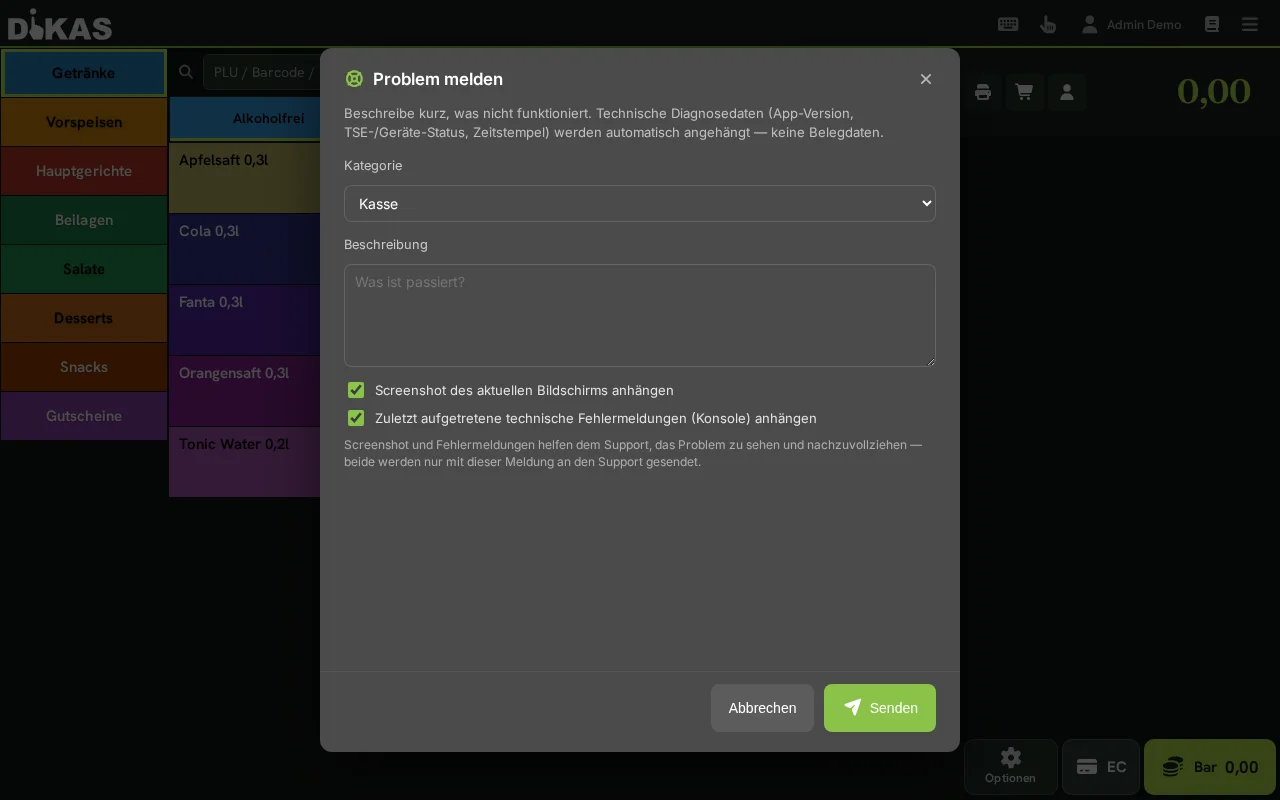
This information helps support:
- What happened? (e.g. "Receipt printer hasn't printed since 7:30 PM")
- When and how often? (once or constantly)
- Which device? (POS, tablet, phone, appliance)
- Photo of the error message, if one is shown
For IT administrators
Manage your own IT? You'll find guides with network and server diagnostics under Troubleshooting.
Next Steps
- The Daily Routine — the normal workflow from morning to closing time
- TSE — what the TSE does and the process during an outage
- Troubleshooting — technical diagnostics for IT administrators