Articles & Groups
Article Groups
Articles are organized in a hierarchical group structure. The groups determine: - The sorting at the POS - The assignment to printers (e.g. food → kitchen printer) - The article group analysis in reports - The inheritance of price rules and print settings
Creating a Group
- Admin → Articles → Tab "Groups"
- Click "+ New Group"
- Fill in:
| Field | Description | Example |
|---|---|---|
| Name | Group name | Beverages |
| Short Name | Optional short label | Bev. |
| Description | Optional text | — |
| Background Color | Color of the tile at the POS | Blue |
| Display | Where the group appears: None / Sales / Order / Cloakroom / Monthly Report | Sales |
ℹ️ Sorting is done via drag & drop in sort mode (not via an editable "Group No." field). DiKAS assigns the hierarchical group ID automatically.
Group Hierarchy
Groups can be nested to any depth:
100 Getränke
  10001 Alkoholfrei
    1000101 Wasser
    1000102 Softdrinks
    1000103 Säfte
  10002 Bier
  10003 Wein
200 Speisen
  20001 Vorspeisen
  20002 Hauptgerichte
  20003 Desserts
300 Verschiedenes
Inheritance: Print settings and price rules are inherited along the hierarchy — from the parent group down to the article. More specific settings override more general ones.
Changing the Group Structure
- Order: Via drag & drop in sort mode
- Move a group to a different level: Also via drag & drop — while dragging, three drop zones appear: before, after, or inside (the group becomes a subgroup of the target group). This lets you turn, say, "Cocktails" into a subgroup of "Beverages" with a single drag
- Create a subgroup: Select a parent group
- Delete a group: Via the trash-can icon (top-level main groups are protected)
💡 Hidden groups: Groups with display set to "None" do not appear at the POS — not even as a tab within their main group. In the admin area you can spot them by the "hidden" marker. Handy for seasonal menus: the mulled wine group can stay set up over the summer while remaining invisible.
⚠️ Note: A group cannot be deleted while it still has articles or subgroups assigned to it — DiKAS stops with a clear error message. Move or delete the contained articles/subgroups first; only then can the group be removed.
Extra Articles (tab in the group)
Independent articles from other groups that are additionally displayed in this group (e.g. side dishes or drinks right next to the main courses):
- The article appears in its home group and in the group it is assigned to as an extra article
- When booked via this group, the price rules of this group apply — reliably, even when the group isn't currently selected or isn't displayed at all (display "None"). Even the price shown on the tile already factors in the rule
- Receipt printing still follows the article's home group
Managing Articles
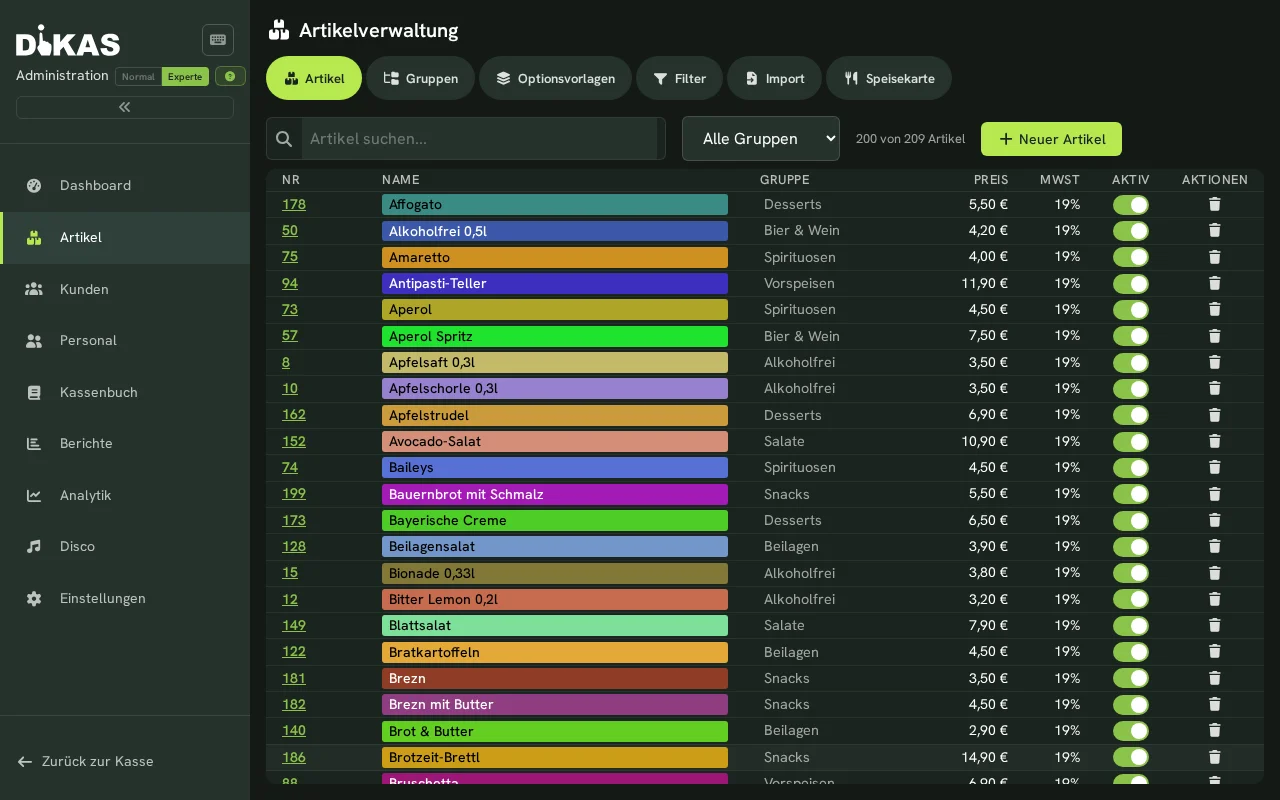
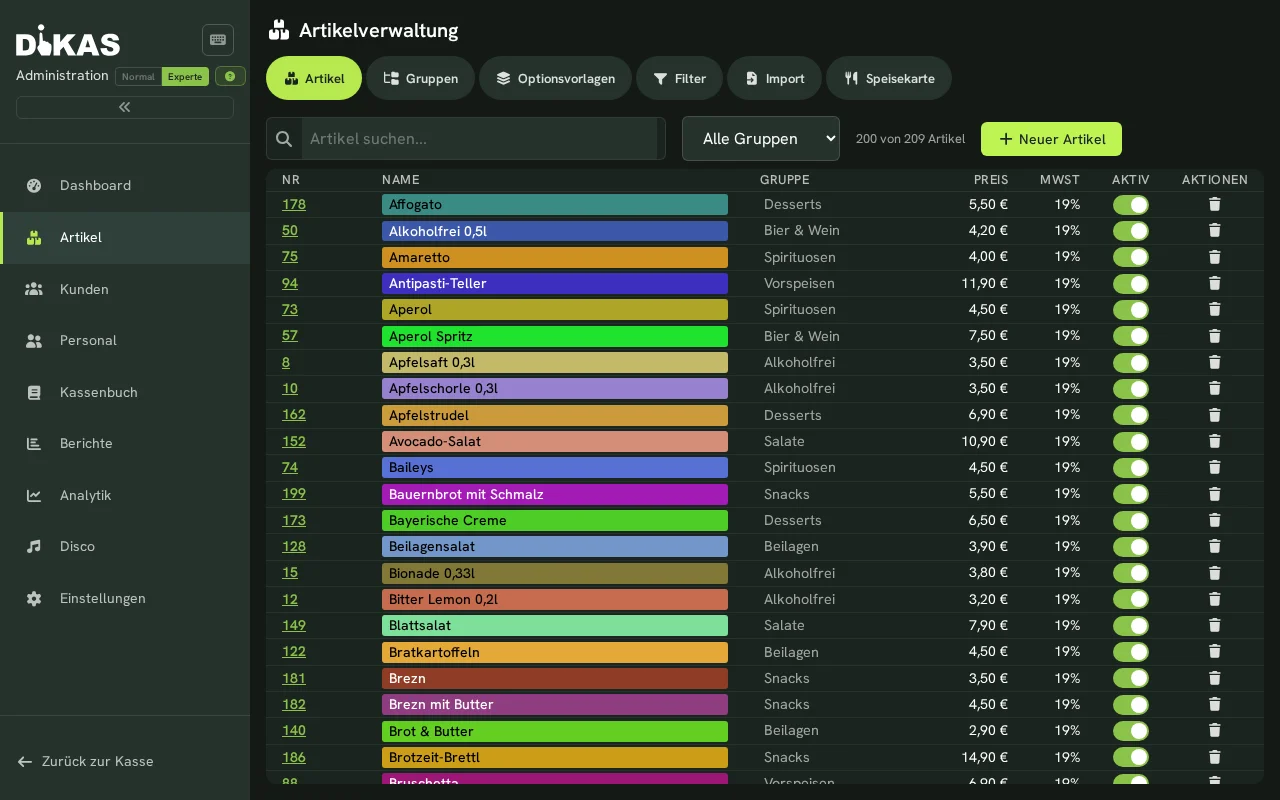
Creating an Article
- Admin → Articles → Select group → "+ New Article"
- Fill in the "General" tab:
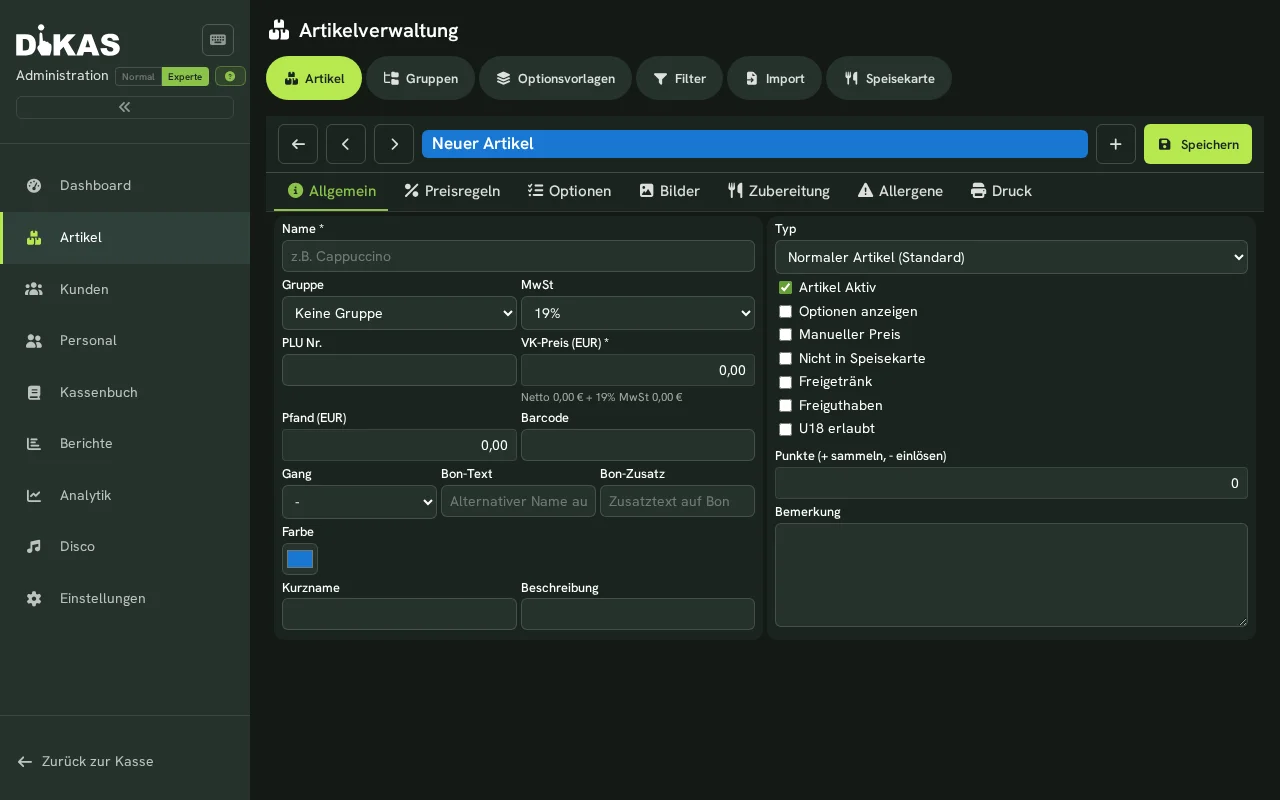
Required Fields:
| Field | Description |
|---|---|
| Name | Article name (appears on the receipt and at the POS) |
| Price | Selling price in euros |
| Tax Class | 19% (standard), 7% (reduced), 0% (tax-free) |
| Group | Assigned article group |
Optional Fields:
| Field | Description |
|---|---|
| Article Number | Unique number (PLU) for reports and export — duplicates are rejected by the system |
| Barcode | EAN code for the barcode scanner |
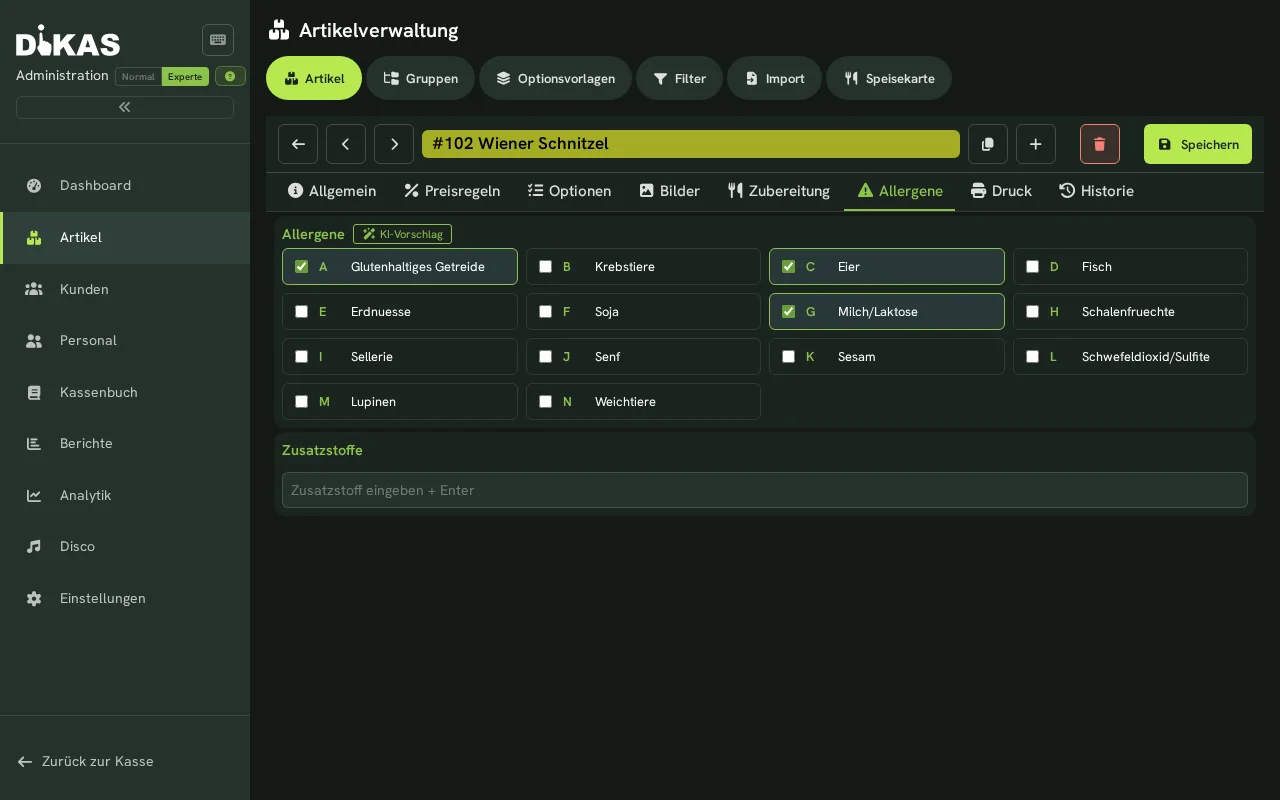
| Allergens | EU-14 allergen labeling |
| Is Active | Inactive articles do not appear at the POS |
| Points | Loyalty points per unit (positive = earn, negative = redeem) |
| Deposit | Deposit amount per unit (e.g. 0.25 EUR) |
| Sold by weight (kg instead of pieces) | Marks goods sold by weight — see Weighed articles |
| Scale PLU | Number of the article in the label scale; appears only after "Sold by weight" — see Label scale |
| Unit | Unit of quantity on invoices, quotes and delivery notes — e.g. Stück, Std., Pauschal, m, Paket. Free text with suggestions; it sits next to the price, even without expert mode. Empty means "Stück" (piece). For a weighed article the field is not shown; kg, g or l applies there |
ℹ️ Unit on the document: The article's unit is taken over as the default in invoices, quotes and subscriptions and can be changed per line there. Articles that previously received "Stk" automatically without their own entry were switched once to "Stück"; a spelling you entered yourself (such as "Stk.") stays unchanged. Documents already issued keep their unit.
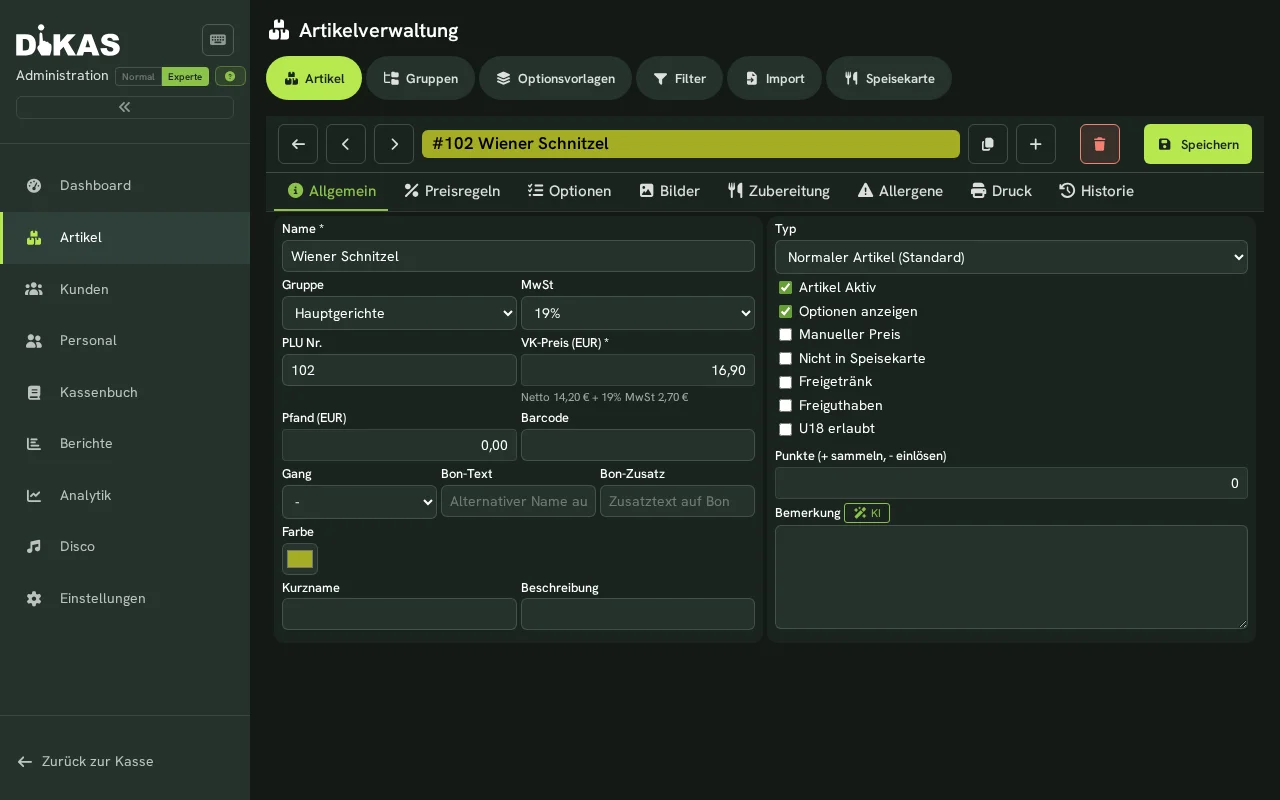
💡 Beginner-friendly editor: The Name is at the very top. Below the sales price, net + VAT is shown instantly so you can see what the gross price contains. The Normal/Expert toggle (top right) hides or reveals rarely needed fields (deposit, barcode, course, receipt texts, special type …) and the Price rules/History tabs. Help icons (?) explain every field; if the name is missing, the message appears right at the field.
In Expert mode, the General tab groups Deposit, Deposit article, Barcode, "Sold by weight (kg instead of pieces)", Scale PLU and Unit (kg, g, l) in the "Deposit & scale" section. How weighed articles are set up and sold at the POS is described in Selling weighed articles at the POS.
The Type determines whether it is a normal or a special article (default = "Normal article") — see Special Articles. The Print tab (with print preview) and Price rules tab (with price check) each show a live preview of the result at the top.
Changing the Price Permanently
The most common everyday task — done in 30 seconds:
- Admin → Articles → Search for the article (search field at the top, e.g. "Cola")
- Tap the article → enter the new price in the sales price field (e.g. 3.50 EUR → 3.80 EUR)
- Save — the new price applies immediately at all registers
Receipts already booked keep the old price; open tables book at the new price from now on.
Permanent vs. Temporary
Change the sales price for permanent price adjustments. For time-limited promotions (happy hour, lunch menu), price rules are the right tool — the base price stays untouched.
Editing an Article
- Click on the article in the article list
- Make changes
- Click "Save"
Deactivate Instead of Delete
When an article is no longer offered:
- Don't: Delete the article (it will be missing from historical reports)
- Better: Set the article to "Inactive"
The article disappears from the POS but remains in reports and historical receipts.
An inactive article appears neither at the POS nor in the online shop or on the QR menu, and it can no longer be booked or ordered. Items that are already on a table or receipt can still be settled, voided and moved as usual. Options that refer to an inactive article (e.g. a side dish) are no longer offered either.
Not in menu
With the "Not in menu" switch an article stays active and can still be booked at the POS, but it does not appear on the printed menu, in the online shop, on the QR menu or at the self-order kiosk. Guests cannot order it there either.
📋 Tax Classes
DiKAS supports three tax rates:
| Tax Class | Tax Rate | Usage |
|---|---|---|
| Standard (0) | 19% | Beverages |
| Reduced (1) | 7% | Food (uniformly 7% since 01.01.2026, regardless of dine-in or takeaway) |
| Tax-free (99) | 0% | Voucher sales, credit top-ups, deposits |
Article Images
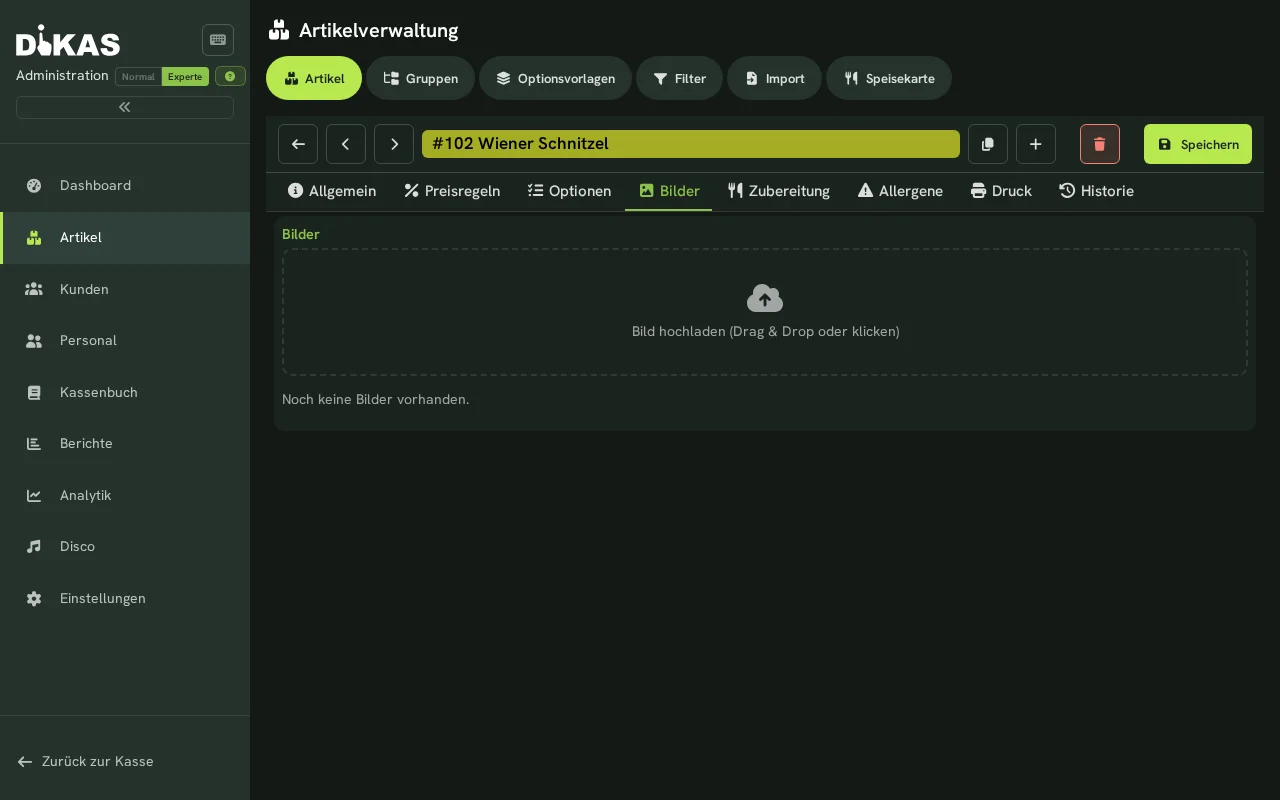
Each article has one central image gallery (Tab "Images"). The same images are used everywhere: as the POS icon (primary image), for online ordering (table self-order, webshop), at the self-order kiosk and in the preparation editor.
- Open article → Tab "Images"
- Drop an image via drag & drop or click to upload (JPG, PNG, GIF or WebP; recommended: square, min. 400×400 px)
- On upload the image is automatically optimized for the web: converted to WebP, scaled to max. 1200 px, plus a thumbnail is generated — this saves load time in the online shop
- Set the primary image: the image marked with the gold star "Primary" is shown as the POS icon and as the main image in the online shop. Use "Set as primary" to switch it
ℹ️ Images are managed here only — the previously separate image management on the Web tab is gone. At the POS, colored buttons are shown and the primary image serves as the icon.
Preparation (Kitchen Display)
In the "Preparation" tab you store a preparation guide that appears on the kitchen display via the info icon on the order position.
- Formatting: bold, italic, underline, headings, lists, text color and highlighting of important steps.
- Insert images: upload a new one or pick an existing article image via the gallery picker (from the "Images" tab).
- Tables: "Insert table" (2×2) as well as "Image left / text right" for a two-column layout — image next to the text.
Article Options (Extras)
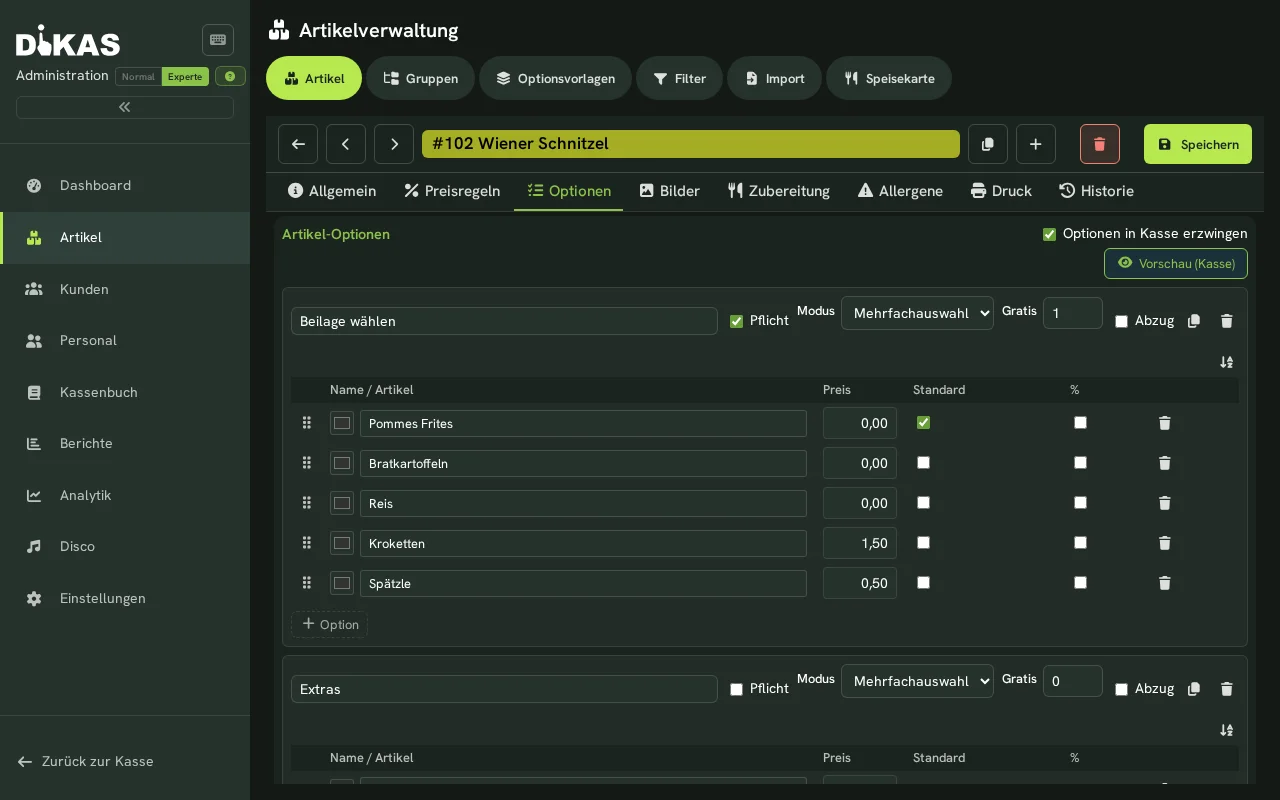
For articles with choices (side dish, doneness, extra topping):
- Open article → Tab "Options"
- Add "+ Option Group"
Configuring an Option Group
| Field | Description | Example |
|---|---|---|
| Name | Group name | Extra Topping |
| Required | Must a guest choose an option? | Yes/No |
| Mode | Single or multiple selection | Multiple |
| Free Count (FreeCount) | First N options are free (multi-select only, expert mode) | 1 (one free) |
| Deduct on Deselect (DeductOnDeselect) | Price deduction when a default option is deselected (multi-select only, expert mode) | Yes/No |
ℹ️ There are no separate "minimum/maximum selection" fields in the editor — this is controlled via Required (at least 1) and Mode (single = exactly 1, multiple = any number).
Adding an Option
| Field | Description | Example |
|---|---|---|
| Name / Article | Enter free text or search and link an article (from 2 characters) | Ham |
| Surcharge | Additional price (negative = deduction) | 1.50 EUR |
| Default | Pre-selected? | No |
| Percentage | Surcharge as percentage instead of fixed price? (expert mode) | No |
Name / Article — one combined field: While typing, matching articles appear as a dropdown (arrow keys + Enter). Selecting an article makes the option take over the article name, a package icon 📦 indicates the link, and ✕ removes it. Linked articles are carried along when booking (e.g. for stock management).
Preview (POS): The button at the top right opens the real POS dialog with the current (even unsaved) options — exactly how the article will look when booked.
ℹ️ The same option-group editor is used in three places: on the article (tab "Options"), on the article group (tab "Options", inherited by all articles in the group), and in option templates. Copy/paste of option groups also works across these views.
Example: Pizza with Topping Selection
Optionsgruppe: Extra-Belag
  Modus: Mehrfach
  Mindestauswahl: 0
  Maximalauswahl: 5
  Gratis: 0

  Schinken        +1,50 €
  Pilze           +1,00 €
  Oliven          +1,00 €
  Peperoni        +1,00 €
  Extra Käse      +2,00 €
Example: Steak with Side Dish (One Included)
Optionsgruppe: Beilage
  Modus: Einzelauswahl
  Mindestauswahl: 1
  Maximalauswahl: 1
  Gratis: 1                ← günstigste Option ist kostenlos

  Pommes           3,50 €  → kostenlos (günstigste, im Gratis-Kontingent)
  Reis             3,50 €  → kostenlos (gleicher Preis, auch im Kontingent)
  Salat            3,50 €  → kostenlos
  Bratkartoffeln   5,00 €  → wenn gewählt: nur Differenz berechnen
FreeCount: The Cheapest N Options Are Free
When Free Count (FreeCount) is set, the cheapest selected options are free:
| Free Count | Selected | Charged |
|---|---|---|
| 2 | Fries (3.50 EUR), Salad (3.50 EUR), Roasted Potatoes (5.00 EUR) | Only Roasted Potatoes: 5.00 EUR |
| 1 | Ham (1.50 EUR), Extra Cheese (2.00 EUR) | Ham free, Extra Cheese: 2.00 EUR |
| 3 | 3 options at 1.00 EUR each | All 3 free |
Deduct on Deselect (DeductOnDeselect)
When an article comes with certain ingredients by default and the guest deselects one, a price deduction can be granted.
Example: Burger (12.90 EUR) comes by default with cheese (+1.50 EUR, included in the price).
| Guest Request | Receipt Display | Price |
|---|---|---|
| Burger as described | Burger | 12.90 EUR |
| Burger without cheese | Burger, ~~Käse~~ (-1.50 EUR) | 11.40 EUR |
| Burger without cheese, with extra bacon (+2.00 EUR) | Burger, ~~Käse~~ (-1.50 EUR), Bacon (+2.00 EUR) | 13.40 EUR |
🔧 Option Templates
When multiple articles have the same options (e.g. all pizzas have the same topping options):
- Admin → Option Templates
- Create a template (e.g. "Pizza Extras")
- Add option groups to the template
- Reference the template in the articles
Benefits of Templates
| Without Template | With Template |
|---|---|
| Maintain options on each article individually | Maintain once, up-to-date everywhere |
| New option → edit all 30 pizzas | New option → only change the template |
| Error risk with many articles | Consistency guaranteed |
Default Override
Each article can override the default selection of the template. This way the "Pizza Extras" template can be used, but Pizza Margherita has "Extra Cheese" selected by default while Pizza Salami does not.
Resolution Order
When an article has options from multiple sources, the following priority applies:
- Option Templates (highest priority)
- Inline Option Groups (directly on the article)
- Legacy Options (old format options, automatically converted)
💰 Price Rules
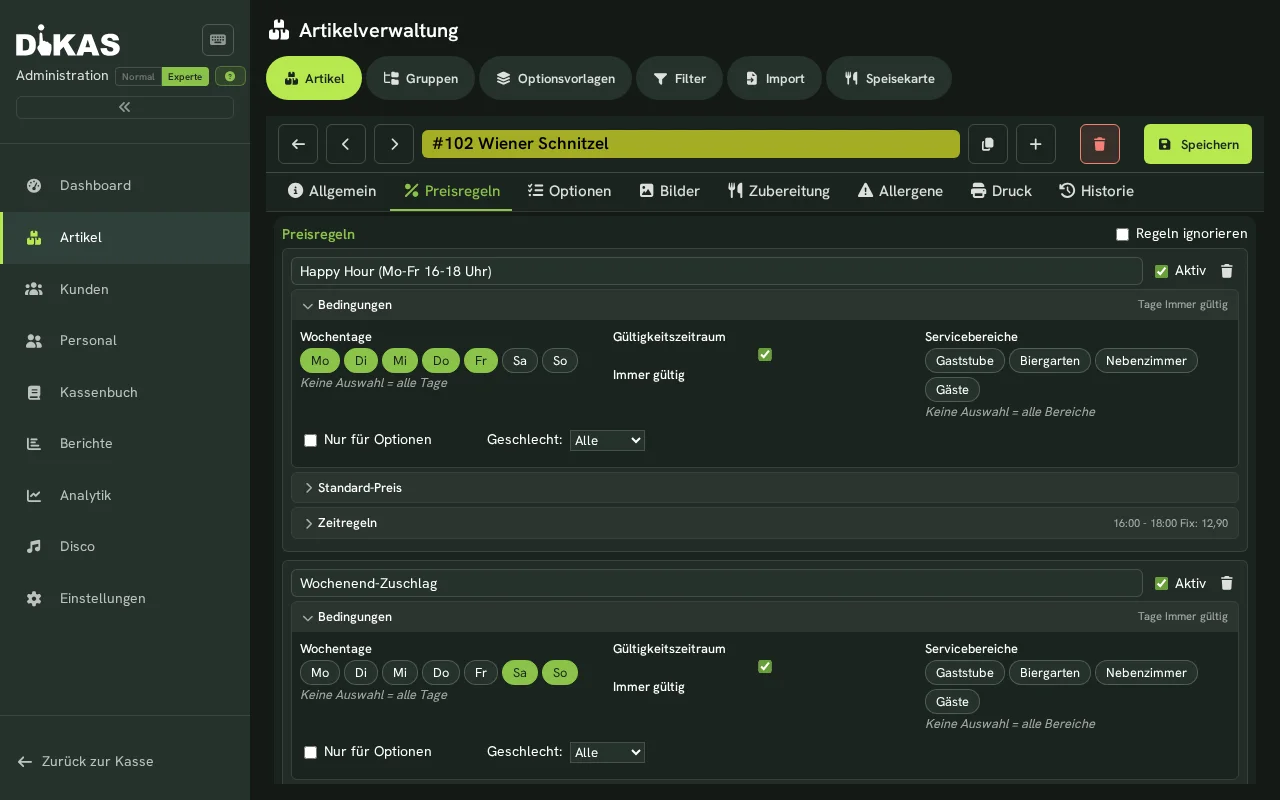
DiKAS offers a flexible price rule system for happy hours, customer group discounts, daily specials and more.
How Price Rules Work
Price rules are defined at the article or group level. Multiple rules can be active per article — the cheapest rule always wins.
Rule Types
| Type | Description | Example |
|---|---|---|
| Percentage (VKPercent) | Price as percentage of base price | 80 = 20% discount |
| Surcharge/Deduction (VKAddMinus) | Fixed amount add/subtract | -1.00 = 1 EUR cheaper |
| Fixed Price (VKFix) | Fixed price (ignores base price) | 3.00 = always 3 EUR |
Rule Conditions
Each rule can be restricted to specific situations:
| Condition | Description | Example |
|---|---|---|
| Weekdays | Only on certain days | Mon–Fri |
| Time Window | Only at certain times | 17:00–19:00 (Happy Hour) |
| Date Range | Start and end date | 01.12.–24.12. (Advent offer) |
| Customer Group | Only for specific customer groups | Regular customers, corporate customers |
| Workstation | Only at specific registers | Counter sales |
| Table Section | Only in specific sections | Beer garden, terrace |
| Delivery Mode | Only for delivery or pickup | Delivery only |
| Minimum Price | Price must not fall below minimum | Min. 2.00 EUR |
| Rounding | Round to 10 cents | Yes/No |
Setting Up Happy Hour
Example: All cocktails from 17:00 to 19:00 for 5.00 EUR instead of 8.50 EUR.
- Admin → Articles → Group "Cocktails" → Price Rules
- Create new rule:
- Type: Fixed price = 5.00 EUR
- Time Window: 17:00–19:00
- Weekdays: Mon–Fri
- Name: "Happy Hour"
- Save
Between 17:00 and 19:00, all cocktails cost 5.00 EUR. Outside this window, the standard price applies.
Customer Group Prices
Example: Corporate customers receive 10% discount on all food.
- Admin → Customers → Customer Groups → Create "Corporate Customers"
- Assign the customer to this group (Admin → Customers → [Customer] → Customer Group)
- Admin → Articles → Group "Food" → Price Rules
- New rule:
- Type: Percentage = 90 (= 10% discount)
- Customer Group: Corporate Customers
- When a corporate customer is selected, reduced prices apply automatically
When the discount takes effect
At the POS the rule applies as soon as the customer is selected — retroactively as well, for items that are already in the cart. Remove the customer again and the prices fall back. Manually entered prices and weight prices remain untouched.
At the table the rule applies to everything booked from the customer assignment onwards — lines already booked keep their price, because they are already stored as open receipts. If you want to discount them afterwards, void the line and book it again.
Staff discount
For staff prices, create a customer group "Staff" and proceed exactly as above. Staff members only appear in the customer search at the POS if they also exist there as a customer — which happens automatically as soon as the staff card is scanned at the POS. The customer search searches names, customer number, contact details, address, notes and card number; it does not search the name of the customer group.
Time-Based Visibility
Price rules can also control the visibility of articles:
| Visibility | Meaning |
|---|---|
| No Change | Article always visible (default) |
| Always Show | Article only visible during the time window |
| Always Hide | Hide article during the time window |
Example: Breakfast items only shown at the POS from 07:00 to 11:00.
Rule Hierarchy
Price rules are evaluated hierarchically — more specific rules take precedence:
- Article Rule (highest priority)
- Group Rule (direct group of the article)
- Parent Group Rule (parent group, grandparent group, etc.)
When multiple rules apply at the same level, the cheapest price for the customer wins.
Night Rules (Across Midnight)
Rules with time windows like 22:00–04:00 are correctly evaluated across midnight. Ideal for clubs and bars with nighttime operations.
Quantity Pricing
For articles with volume discounts:
| From Quantity | Unit Price |
|---|---|
| 1 | 10.00 EUR |
| 5 | 9.50 EUR |
| 10 | 8.00 EUR |
| 50 | 7.00 EUR |
Quantity pricing is configured per article and takes precedence over price rules.
Special Articles (ExtraOption)
In addition to regular sales articles, DiKAS supports various special article types for specific functions:
Overview of All Article Types
| Type | Name | Description | Manual Price? |
|---|---|---|---|
| 0 | Normal | Regular sales article | No (fixed price) |
| 1 | Customer Top-up | Top up customer credit | Yes |
| 2 | Voucher | Voucher redemption (negative item) | No |
| 6 | Tip | Tip recording | Yes |
| 7 | Time Article | Price increases with time at the table | No |
| 8 | Deposit | Deposit/security — 0% (pass-through item) or 7/19% (deposit as part of the price), see Deposit Articles | No |
| 9 | Voucher Top-up | Sell a voucher | Yes |
| 10 | No Minimum Order | Excluded from minimum order value | — |
| 13 | Discount | Percentage discount on the receipt | No |
| 14 | Discount Article | Bonus discount (system) | No |
Discount Articles in Detail
How it works: A discount article automatically calculates a deduction on the total receipt amount — as a percentage or as a fixed amount.
Setup:
- Create an article with type "Discount" (ExtraOption = 13)
- Enter Discount (%) (e.g. 10 for 10%) — or Discount (fixed amount) (e.g. 2.00 for a deduction of €2.00). A fixed amount wins over the percentage.
- Optional: choose a rounding method (none, 5-cent, 10-cent)
Fixed amount: the sign does not matter (2.00 and −2.00 both deduct €2.00). If the discount article is booked twice, the amount counts twice. The deduction is capped at the receipt amount: a €5.00 discount on €3.00 of goods deducts €3.00, never more.
Example: 10% staff discount
Schnitzel         12,90 €
Pommes             3,50 €
Cola               3,50 €
──────────────────────────
Zwischensumme     19,90 €
Personalrabatt   -1,99 €  (10 %)
──────────────────────────
Gesamt           17,91 €
Usage at the POS:
- Order/select all articles
- Tap the discount article
- The discount is automatically displayed as a negative item on the receipt
- VAT is correctly calculated on the reduced amount
Deposit Articles
Deposits are automatically added when an article has a deposit amount.
Setup:
- Open article → Fill in the "Deposit" field (e.g. 0.25 EUR)
- When sold, a separate deposit line item is automatically created on the receipt
Example:
The tax rate of the deposit article determines how the deposit is treated:
| Tax rate on the deposit article | Treatment | End-of-day report | DATEV |
|---|---|---|---|
| 0% (default) | Pass-through item: the deposit is not part of revenue | Deposit appears separately (collected / refunded) | Deposit account |
| 7% or 19% | Deposit as part of the price: the deposit is part of revenue at the rate of the main item (e.g. 19% for drinks, 7% for food) | Like normal revenue at this rate | Revenue account of the rate |
For a deposit as part of the price, the return is booked as a negative line at the same rate, so the VAT corrects itself automatically. To do this, create a separate deposit article (type Deposit), set its tax rate to 7 or 19% and assign it to the articles as their deposit article (Expert mode, field "Deposit article"). An article newly switched to the type Deposit starts at 0%.
Which rate is right for your deposit
Whether your deposit is a pass-through item or part of the price depends on the individual case. Clarify this with your tax advisor – DiKAS supports both cases.
Tip Articles
Tips can be recorded as a special article:
- Tap the tip article (type "Tip")
- Enter the amount
- The tip appears separately on the receipt and is assigned to the waiter
Time Articles
For billiard tables, gaming stations or time-based offers:
- Each table runs its own time billing; the number of people does not matter unless Price per person is switched on (see Game operations).
- The Sale price field holds the normal hourly price.
- Under Time rule, a Maximum amount per session can optionally be entered. If the field is
empty or
0, there is no price cap. - Different prices during the day are created in the Price rules tab as time windows of the same article. When a boundary is crossed, DiKAS splits the running session automatically.
Example for four billiard tables: One time article "Billiard time" is enough. €15.00 per hour is entered as the sale price. A price rule then gets these time windows:
| Time | Fixed price per hour |
|---|---|
| 06:00–14:00 | €8.00 |
| 14:00–18:00 | €12.00 |
| 18:00–00:00 | €15.00 |
The article can run on all four tables at the same time. A session from 13:30 to 14:30 therefore costs €10.00: half an hour at €8.00 and half an hour at €12.00.
Maximum amount
If a session should never cost more than, say, €25.00, enter €25.00 as the maximum amount in the time rule. The clock keeps running visibly, but the calculated total price does not rise above this amount.
An active time article changes card scanning at the direct till
As soon as there is any active time article — even one meant only for billiards or the bowling alley — every card for which no clock is running opens the dialog „Karte … — Tarif wählen" (card … — select rate) when scanned at the direct till. A customer card is then read as usual via „Stattdessen als Kundenkarte" (use as customer card instead). Without an active time article, the direct till reads every card straight away as a customer card.
→ Operation at the till: Time billing at the table
Play area with NFC card
For indoor playgrounds and parent-and-child cafés, time can also be billed via an NFC wristband at the direct till — without a table and without a customer account:
- Create rates: one time article per rate, for example "Child from 3" at €6.00 per hour and "Toddler" at €4.00. Tiers, price rules and maximum amount apply as above.
- Entrance: hold the wristband to the card reader. If no time is running for the wristband yet, the till shows the active time articles for selection; after the selection the clock starts. If the card belongs to a customer, it can be used as usual via „Stattdessen als Kundenkarte" (use as customer card instead).
- Leaving: scan the wristband again. The time appears as a line in the basket, for example „Karte 1234 · Kind ab 3 · 1 h 42 min · 12,50 €". Several wristbands of a family are scanned one after another; a second scan of the same wristband does not create a second line.
- Adding the café table: via „Tisch abrechnen" (settle table) you select the family's open table; its items appear in the basket as well.
- Paying: as usual. Pressing Bar, EC or Optionen stops the clocks, and everything is billed on one receipt.
- Wristband deposit (optional): under Settings › Operations › Bonus, enter the amount at Play area wristband deposit. The default is 0 = no deposit. With an amount, the till adds a deposit item to the ticket at the entrance and, on the way out, the refund with the amount paid at the time. Like the customer card deposit, the deposit is booked without VAT and is not counted as empties.
As long as nothing is paid, the clock keeps running
If a time line is deleted from the basket, the wristband's clock stays unchanged — it is only stopped by pressing Bar, EC or Optionen. The „Tisch abrechnen" overview lists running wristbands with their current amount; selecting a wristband there makes its time line appear as after a scan.
→ Everything about the play area on one page: Play area: time billed via NFC wristband
→ Operation at the till: Play area: time via wristband
Which card is that?
A wristband without a customer appears in the Gäste (guests) group as „Karte" with the last four characters of the card number.
Minimum Order Value Exception
Articles with the type "No Minimum Order" are excluded from the minimum order value check. Typical for:
- Delivery fees
- Deposits
- Service charges
System Articles
DiKAS has 12 predefined system articles that are automatically created and cannot be deleted:
| ID | Name | Usage | VAT |
|---|---|---|---|
art_custbonusrabatt |
Top-up Bonus | Automatic discount when bonus credit is used | 19% |
art_payout |
Credit Payout | Payout of customer credit | 0% |
art_guthabenaufladen |
Customer Credit Top-up | Load credit to customer account | 0% |
art_gutscheinaufladen |
Voucher Top-up | Create/sell a new voucher | 0% |
art_manuell |
Manual Price | Free price entry for ad-hoc articles | 19% |
art_arbeitszeit |
Working Time | Hourly billing (workshop) | 19% |
art_gutscheineinloesung |
Voucher Redemption | Negative item for voucher redemption | 0% |
art_pfand |
Deposit | Automatically added deposit amount | 0% |
art_liefergebuehr |
Delivery Fee | Automatic delivery charge | 19% |
art_mindestbestellwert |
Minimum Order Surcharge | Surcharge when minimum is not met | 19% |
art_discoeintritt |
Disco Entry | Entry fee (disco module) | 19% |
art_discomindestverzehr |
Disco Minimum Spend | Surcharge when minimum spend is not met | 19% |
Properties of System Articles:
- Automatically created on first startup
- Cannot be deleted (protected) — certain properties are protected as well; an invalid edit attempt is rejected with a clear error message (instead of being silently ignored)
- Can be moved to other article groups
- Displayed with a [System] prefix in the article list
- Cannot be copied
Article Import
DiKAS offers an intelligent import wizard for article data from CSV/Excel files.
Import Wizard (4 Steps)
- Upload File — Upload CSV, TXT or XLSX (drag & drop possible)
- Map Columns — DiKAS recognizes columns automatically or you map manually
- Preview — Review which articles will be created/updated
- Import — Articles are created, groups are automatically created
AI-Assisted Mapping
DiKAS can recognize the column mapping automatically using AI:
- Supports OpenAI, Anthropic, Google Gemini and Ollama
- Recognizes columns like "Artikelbezeichnung", "VK Preis", "MwSt" automatically
- Works even with unknown column names
Duplicate Detection
| Mode | Behavior |
|---|---|
| Skip | Do not change existing articles |
| Update | Update existing articles with new data |
| Replace | Completely replace existing articles |
Import Profiles
Frequently used mappings can be saved as an import profile and reused — ideal for regular supplier imports.
Allergens Tab
Print & Kitchen Display Tab
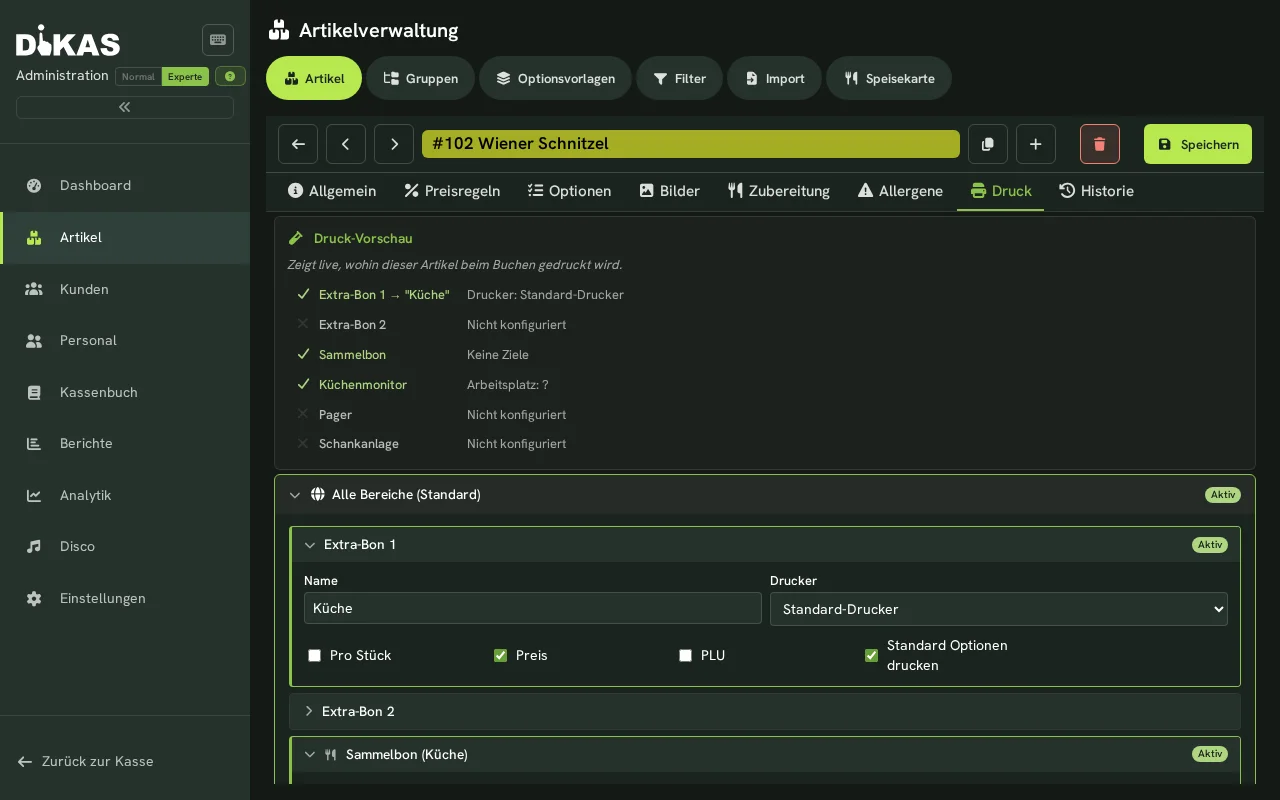
In the "Print" tab you define, per service area, on which printers and in the kitchen display the article appears (extra ticket, consolidated order ticket, draught system). A print simulator shows which rules apply.
Ask for pager ID on payment
The switch "Ask for pager ID on payment" is on the "General" tab, next to the till fields course, receipt text and receipt note. It is only visible in the Expert view mode — first switch the Normal/Expert toggle of the administration to Expert.
It decides whether a sale gets a pager number: as soon as at least one article marked this way is in the basket, the transaction gets a number — once per sale in a direct sale. When a table is paid in the table view, the till does not ask, and the table does not get a number.
Where the number comes from is set centrally under Administration → Settings → Operation → Pager: either the till asks for it when taking payment (manual, for real pagers) or the server assigns it consecutively per business day (automatic). The number is stored on the receipt, printed as its own line on the customer receipt, shown large at the top of the kitchen and pickup cards and as the line “Pager:” on extra and consolidated order tickets.
→ In detail: Pager
Further Tabs
Depending on which modules are active, additional tabs appear:
- History — change log for name, price, and VAT (for existing articles)
- Web — fields for online ordering (web title, description, vegan/vegetarian/gluten-free, spice level, preparation time) — only with the online ordering module
- Ticket — admission/ticket settings — only for article type "Ticket"
- Inventory — stock management — only with the inventory module
Further Reading
→ Articles, Printers & Rules — Quick Start — Compact overview with practical examples
→ Articles, Printers & Rules — Detailed — All features in detail: printer control, price rules, draught systems, course control
Next Step
→ Customers — Manage customer database