Data Import & Export¶
DiKAS offers comprehensive import and export functions: an intelligent article import wizard with optional AI support, selective backup & restore with 8 categories and real-time progress, plus a guided migration assistant for switching from another POS system.
Admin → Data Import
Article Import¶
Overview¶
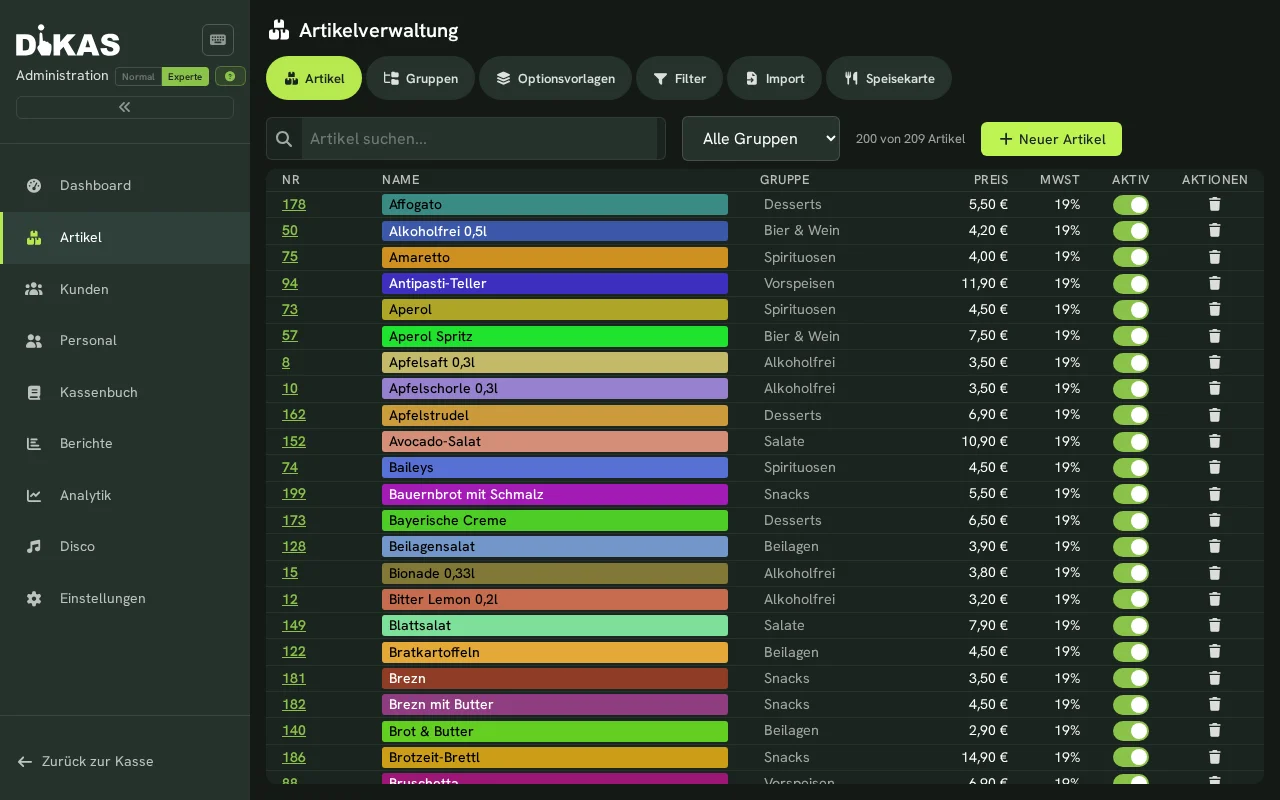
The import wizard guides you through the article import in 4 steps — from file selection to the results overview. Columns are automatically recognized, optionally with AI support.
Step 1: Upload File¶
Admin → Data Import → Article Import
Supported formats:
| Format | Description |
|---|---|
| CSV | Semicolon or comma separated |
| TXT | Tab separated |
| XLSX | Excel files |
| Via AI extraction (optional) | |
| Images | JPG/PNG/WebP via AI extraction (e.g. photo of a price list) |
Drag the file into the upload area or click "Select File".
Automatic Detection:
DiKAS automatically detects:
- Delimiter: Semicolon (;), comma (,), tab, pipe (|)
- Encoding: UTF-8 (with and without BOM) as well as Windows-1252 — even when the file carries
no marker. That is the normal case for exports from older programs; without this detection,
umlauts would arrive as question marks.
- Header Row: Whether the first row contains column headers
Multi-line text
If a description or note containing a line break is enclosed in quotation marks, it is read as one value and not torn apart at every break. That is exactly how Excel writes such fields when saving as CSV — so a file edited in Excel goes back in unchanged.
A saved import profile takes precedence
If a profile was selected for the import, its settings for delimiter and encoding apply — automatic detection does not run then. Whoever configured something there meant it that way.
Step 2: Map Columns¶
DiKAS analyzes the column headers and values to suggest the best mapping:
Automatic Column Detection (19 target fields):
| DiKAS Field | Recognized Column Headers |
|---|---|
| Name | Artikelname, Bezeichnung, Produktname, Product |
| Price | VK-Preis, Preis, Verkaufspreis, Price, Betrag |
| Article Number | PLU, SKU, ArtNr, Artikelnr, Number |
| Tax Rate | MwSt, Steuer, Tax, VAT, MwSt% |
| Tax Class | Steuerklasse, TaxClass |
| Article Group | Gruppe, Warengruppe, Kategorie, Category, WGR |
| Barcode | Barcode, EAN, GTIN, EAN13 |
| Unit | Einheit, Mengeneinheit, ME |
| Description | Beschreibung, Langtext, Info |
| Short Name | Kurzname, Kurz |
| Color | Farbe, Hintergrund, Background, Color |
| Active | Aktiv, Active, Sichtbar, Visible |
| Allergens | Allergene, Allergen |
| Additives | Zusatzstoffe, Zusatzstoff, Additives |
| Sort Order | Sortierung, Position, Reihenfolge |
| Deposit | Pfand, Deposit |
| Course | Gang, Course, Küche |
| Show in menu | In Speisekarte, Speisekarte, Show in menu |
| Special function | Sonderfunktion, ExtraOption |
For Show in menu, ja, yes, true, 1 or x mean that the article appears in the digital menu and therefore in QR table ordering. nein, no, false or 0 hides it there. This saves ticking every single article afterwards.
Older import files remain usable
An existing HideFromMenu column is still recognised. It is worded the other way round:
true means "hide" there.
Special functions are only imported if unambiguous
A special function changes what the register does when booking (e.g. topping up credit, issuing a voucher, booking a tip). DiKAS therefore only imports it if it is unambiguous:
- Plain text such as
Gutschein,LizenzorTrinkgeldis always imported. - A number (e.g.
2) only from a column named Sonderfunktion or ExtraOption — that is its name in the import template and in the article export. - If the column counts up continuously (0, 1, 2, 3 …), nothing is imported. This happens when the column was dragged down while filling it in the spreadsheet.
- Unknown values are not imported either.
The preview shows the special function in plain text and marks values that will not be imported. Every imported and every non-imported special function is listed under Notes after the import. Please check this list.
Detection Phases: 1. Header Matching: Column header is checked against 60+ known patterns 2. Value Analysis: For unclear columns, the first 20 rows are analyzed (numbers, booleans, codes)
Correct the mapping via dropdown if needed.
AI Mapping: If an AI provider is configured, click "AI Suggestion" — DiKAS sends column headers and sample rows to the AI and receives an optimized mapping.
Step 3: Preview & Configuration¶
Review the imported data: - How many articles will be imported? - Are there duplicates? (Same article number, barcode or name) - Will new groups be created?
Duplicate Handling:
| Mode | Description |
|---|---|
| Skip | Do not change existing articles |
| Update | Update existing articles with new data |
| Replace | Delete existing articles and recreate |
Duplicate Detection: Comparison by article number, barcode or name (configurable).
Value Transformations:
| Transformation | Description |
|---|---|
| Tax Class → Tax Rate | Legacy tax class (0/1/99) → percentage (19/7/0) |
| Price Format | German (1.000,00) and English (1,000.00) format |
| Boolean Text | "ja"/"yes"/"1"/"x" → active, "nein"/"no"/"0" → inactive |
| Allergen Codes | Legacy codes (a1–a14) → EU codes (A–N) |
Step 4: Execute Import¶
Click "Import". The result shows: - Newly created: X articles - Updated: X articles - Skipped: X articles - Errors: X articles (with details per row) - Notes: e.g. imported or non-imported special functions, with row number
New article groups are automatically created if the specified group does not yet exist.
Import Profiles¶
Save frequently used mappings as a profile:
- After successful mapping: "Save Profile"
- Enter a name (e.g. "Supplier Müller CSV")
- Saved: Column mapping, transformations, delimiter, default group, tax, duplicate mode
- On the next import: Load profile → mapping is already complete
Profile Settings¶
| Field | Description |
|---|---|
| Name | Profile name |
| Source Format | CSV, XLSX, PDF, Image |
| CSV Settings | Delimiter, encoding, header row, text qualifier |
| Excel Settings | Sheet index/name, header row, data start |
| Default Group | Fallback article group |
| Default Tax Rate | Fallback tax rate |
| Duplicate Mode | Skip / Update / Replace |
| Matching Field | Article number / Barcode / Name |
AI-Assisted Import¶
PDF and Image Extraction¶
For price lists as PDF or photo:
- Upload PDF or image (multi-page/multiple files in one pass supported)
- DiKAS sends the file to the configured AI provider
- For each article, the AI extracts: name, price, group, a VAT class suggestion (standard/reduced/tax-exempt), allergens (EU-14, A–N) and — if printed on the menu — options/extras (e.g. toppings, sizes, side dishes) including surcharges (see Options & Extras)
- Instead of the generic column mapping (step 2 above, which only applies to CSV/XLSX/TXT), photo/PDF uploads open the correction loop directly — see below
- After correcting: continue as with CSV import (steps 3–4, preview & import)
Correction Loop¶
AI recognition is a suggestion — the correction loop shows the result as an editable table before anything is imported:
| Column | Editable as |
|---|---|
| Name | Free text |
| Price | Free text (recognizes German 1.234,56 and English 1,234.56 formats) |
| Group | Free text with suggestions from existing groups |
| VAT class | Dropdown |
| Allergens | Clickable chips from the configured allergen list |
- Uncertain rows (AI confidence < 0.7, missing/invalid price, or missing name) are flagged with a warning icon and colored border — please review before importing.
- Rows can be deleted, and "+ Add row" lets you manually add articles the AI missed.
- Existing articles: A toggle controls whether articles with a matching name are updated (default — your corrections win) or left unchanged. Duplicate detection in the photo/PDF path matches on name (menus usually have no article numbers).
- For very large menus (more than 500 recognized items), the correction loop only shows/edits the first 500 — the rest is carried over unchanged, with a warning notice.
ℹ️ The VAT class is an AI suggestion, not a binding tax ruling — please double-check before importing, especially for articles marked for takeaway/delivery.
Options & Extras¶
If choices are printed on the menu — toppings, sizes, side dishes, sauces — the AI also recognizes them and assigns them to the matching articles:
- After the analysis, a note "… option groups detected" lists the groups found (e.g. "Toppings", "Size") with the number of their entries.
- On import, identical option groups are merged across articles and automatically created as option templates; each affected article is linked to the matching template. The result summary shows the number of newly created option templates.
- You then find the options centrally under Admin → Optionsvorlagen (Option templates) and on each article under open article → "Optionen" tab (Options).
ℹ️ Options are not editable in the correction loop (above) — they are imported exactly as the AI recognized them. They are created as multiple selection groups with the printed surcharge; details such as single selection, required selection, default selection or "free quantity" are set afterwards on the article or on the option template.
Supported AI Providers¶
| Provider | Model | Description |
|---|---|---|
| OpenAI | GPT-4 Vision | Cloud-based, API key required |
| Anthropic | Claude Vision | Cloud-based, API key required |
| Google Gemini | Gemini 2.0 Flash | Cloud-based, API key required |
| Ollama | Local models | Self-hosted, no API key needed |
Configuration: Admin → Settings → AI Import
Free Quota¶
Without your own API key, 2 free AI imports are available via the DiKAS key. For unlimited usage, enter your own API key.
Excel Template¶
Download a template containing all 17 target fields:
"Download Template" → Excel file with: - All column headers - One example row with explanations - Format notes per column
Customer Import & Export¶
Customers → "Import/Export" tab
For taking over existing customer data from another system — or for pulling out your own customer list, editing it in Excel and feeding it back in. The assistant guides you through four steps, from the file to the result.
Formats: CSV and Excel (.csv, .txt, .xlsx, .xls). A photo or PDF is not possible
here — that option exists only for the article import.
Template and export¶
| Button | What it gives you |
|---|---|
| Template (CSV / Excel) | An empty file with all column headers and three example rows: a private customer, a business customer and a minimal case (surname and town only). |
| Export (CSV / Excel) | The current customer list with the same columns. |
Delete the example rows before importing
The three template rows are there for explanation only. In the "Notes" column they carry the hint "Example row — delete before importing". If they are left in, the import creates three made-up customers. The preview does show this beforehand — but relying on that is not the way.
The export is the usual route for bulk changes: pull the list, change it in Excel, feed it back. The columns are identical on both sides, so no rework is needed.
Step 1: Upload the file¶
Drag the file into the area or click to select it. DiKAS detects the delimiter and the character encoding itself (see Article Import).
Step 2: Map columns¶
DiKAS proposes the mapping based on the column headers; for unclear columns the content is checked as well (a column full of e-mail addresses is recognised as e-mail). Headers are recognised in German and Spanish:
Always available
| DiKAS field | Recognised column headers |
|---|---|
| Customer number | Kundennummer, Kunden-Nr., Nº cliente, Número de cliente |
| First name | Vorname, Nombre |
| Last name | Nachname, Name, Apellidos |
| Company | Firma, Firmenname, Razón social, Empresa |
| E-Mail, Mail, Correo electrónico | |
| Invoice e-mail | Rechnungsemail, Correo factura |
| Phone | Telefon, Tel, Teléfono |
| Mobile | Mobil, Handy, Móvil |
| Street | Straße, Strasse, Dirección, Calle |
| House number | Hausnummer, Hausnr, Número casa |
| Postcode | PLZ, Postleitzahl, Código postal, CP |
| Town | Ort, Stadt, Ciudad, Población |
| Country | Land, País |
| Customer group | Kundengruppe, Gruppe, Grupo de cliente |
| Card number | Kartennummer, Karte, Tarjeta |
| Date of birth | Geburtstag, Geburtsdatum, Fecha de nacimiento |
| Notes | Notizen, Bemerkung, Notas |
| Active | Aktiv, Activo |
| Tax number / NIF | Steuernummer, USt-Nr, NIF, CIF, DNI |
| Discount | Rabatt, Descuento |
Only with the "Invoices" or "Finance" module
| DiKAS field | Recognised column headers |
|---|---|
| IBAN | IBAN, Kontonummer |
| BIC | BIC, SWIFT |
| Bank | Bank, Bankname, Banco |
| Mandate reference | Mandatsreferenz, Referencia mandato |
| Mandate date | Mandatsdatum, Fecha mandato |
| Purchase on account | Kauf auf Rechnung, Permite crédito |
| Credit limit | Kreditlimit, Límite crédito |
| Net mode | Nettomodus, Modo neto |
| Do not dun | Nicht mahnen, Sin aviso |
| Payment term | Zahlungsziel, Vencimiento |
Without these modules the bank columns are missing
If you have not booked the "Invoices" or "Finance" module, the second group appears in the mapping as "not available (Invoices/Finance module)". Such columns cannot be selected and are not written even if they are present in the file. They are not silently dropped — the preview names them explicitly.
Also set in this step:
| Setting | Meaning |
|---|---|
| Matching field | How DiKAS recognises that a customer already exists: customer number (default), tax ID/NIF or e-mail. |
| On match with an existing customer | Skip (default) · Update · Create anyway. |
| Default country | Applied when the file has no country column. |
| Default customer group | Applied when the file has no group column. |
An empty cell deletes nothing when updating
In Update mode only those columns are written that actually contain something. A file with the columns "customer number" and "discount" therefore changes the discount only — everything else on the customer stays as it is. The same applies to the customer group.
Step 3: Preview¶
The preview runs the whole import through without saving anything. It shows:
- new — this many customers would be created
- matches — this many rows hit an existing customer, each with name and number
- skipped — matches deliberately left untouched in "Skip" mode
- rejected — rows with a problem, each with row number and reason
- which customer groups would be created
\"Skipped\" and \"rejected\" mean different things
Skipped means: all fine, the customer already exists and, per your setting, must not be changed. Rejected means: something is wrong with the row — for example the name is missing, the IBAN has a wrong check digit, or a date is unreadable. A rejected row does not abort the import; all other rows go through.
Only the "Start import" button writes.
Step 4: Result¶
The result shows the same four figures. If a highlighted notice appears at the top, something went wrong during the run itself (saving, for example) — the figures above it then do not necessarily match what is actually in the database. Please do not skip past such notices.
DiKAS assigns new customer numbers itself, counting on from the highest existing number. A customer number in the file serves only to match against your existing records.
What is not imported¶
Credit balances, bonus points and point totals cannot be imported. Amounts belong in the books, not in a file — otherwise there is no trace of where they came from. Post credit after the import under Customers → Credit.
Voucher Import & Export¶
Customers → Vouchers → "Import/Export" sub-tab
For taking over outstanding vouchers from another system.
An import does not post a sale
The voucher was sold in the old system and taxed there. With the import DiKAS records only the outstanding obligation, so that the voucher can be redeemed with you. An imported voucher therefore does not appear in your turnover and not as a sale in the DSFinV-K report.
Remaining value and original amount¶
Two separate columns — the difference matters for partly redeemed vouchers:
| Case | Original amount | Remaining value |
|---|---|---|
| Unused voucher for €50 | 50.00 | 50.00 |
| Issued for €100, €60 already redeemed | 100.00 | 40.00 |
| Fully used up | 20.00 | 0.00 (and "closed" = yes) |
If the original amount column is missing, the remaining value counts as the issue amount as well. A remaining value larger than the original amount is rejected — one of the two figures is then wrong.
Voucher type and tax rate¶
| Type | Meaning |
|---|---|
| Multi-purpose (default) | Tax arises only on redemption. Tax rate 0. If the "voucher type" column is missing entirely, every row counts as a multi-purpose voucher. |
| Single-purpose | Tax already arose on sale. A tax rate is mandatory here — without it the row is rejected. |
The tax rate given must be one of the rates configured for your business (Admin → Settings → Tax rates) — specifically the rate that applied on the voucher's issue date. That way old vouchers from a period with different rates can be taken over too. If the rate matches none of the configured rates, the reason names the value from the file and the rates it was checked against.
Spain
Single-purpose vouchers at 21%, 10% or 4% can be taken over just like German ones at 19% or 7% — provided the rates are configured under Settings → Tax rates. There is no country restriction.
Duplicate numbers¶
No \"create anyway\"
Unlike the customer import, the voucher import offers only Skip and Update. Two vouchers with the same number would be money redeemable twice. If a number appears twice in the file, the second row is rejected — with a pointer to the first.
A row without a voucher number is rejected as well: without a number a voucher cannot be redeemed. DiKAS does not assign the number itself on import — unlike the customer number.
Preview¶
In addition to the four familiar figures, the preview shows:
- the total of the remaining values taken over — the obligation you take on with this run
- how many of them have already expired
Expired vouchers are still taken over. They are part of the stock you inherit; whether you still honour them is your decision.
Template¶
The template contains four example rows — unused, partly redeemed, single-purpose with a tax rate, and used up. Here too: delete before importing; every row carries the hint in the "description" column.
What is not taken over¶
The redemption history of the vouchers is not imported. It belongs to the old system, where it was taxed as well. What is taken over is the state only: which voucher is still open with which remaining value.
Backup & Restore¶
Your data is backed up automatically via the DiKAS Cloud — encrypted and off-site. You do not need to create, download, or manage a backup yourself. If something needs to be restored (e.g. after a device replacement), DiKAS Support takes care of it.
→ Details: Backup & Restore
Switching From Another POS System¶
If you're switching from another POS system, the Setup Wizard guides you through export, import, and the legal obligations that come with the switch — the migration is one part of it.
Start: Admin Dashboard → the "Setup Wizard" card → in the "Where is your data coming from?" step, choose your previous system. Alternatively, go directly to Articles → Import (there's an "Import from another POS system" mode there).
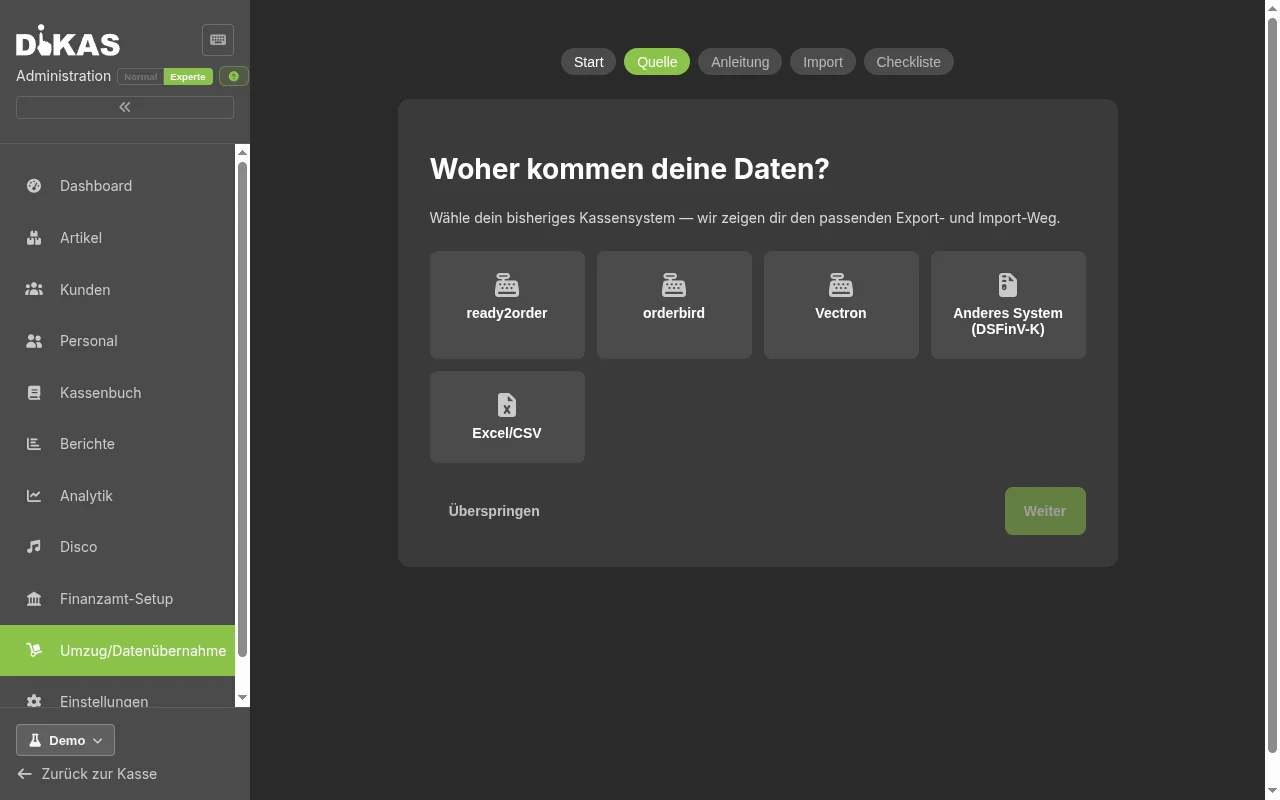
The assistant is organized into steps and can be interrupted at any time — your last saved progress is preselected the next time you open it:
- Choose source: ready2order, orderbird, Vectron, another system (via DSFinV-K export), or Excel/CSV.
- Export guide: a step-by-step guide tailored to your chosen previous system, showing where to trigger the data export (including known pitfalls, e.g. exports sent by email or a limit of a few months per export with some providers).
- Start import: links to the matching importer (DSFinV-K import or ready2order import) — for Excel/CSV, to the existing article import above on this page.
- Migration checklist: a checkable list for a legally sound switch — end-of-day report in the old system, archiving the final DSFinV-K export (accounting records: eight years, § 147 (3) AO), keeping the old TSE, notifying the tax office about the new cash register within one month (§ 146a AO, linked to Tax Office Setup), and updating your procedural documentation.
⚠️ The checklist is guidance and does not replace tax advice — if in doubt, clarify deadlines and obligations with your tax advisor or tax office.
Frequently Asked Questions¶
Can I import only the articles without overwriting everything else? Yes — select only the "Articles" category during restore. All other data remains unchanged.
What happens during a restore with open receipts? Open receipts belong to the "Tables" category. If you do not select this category, the current open receipts are preserved.
Does the import support supplier catalogs with 10,000+ articles? Yes — the import processes large files as well. Processing is done in batches with a progress indicator.
Next Step¶
→ Modules — Add-on modules (Disco, Workshop, Time Tracking)