Dashboard
The dashboard is the start page of the admin area and displays the most important key figures at a glance.
Admin → Dashboard
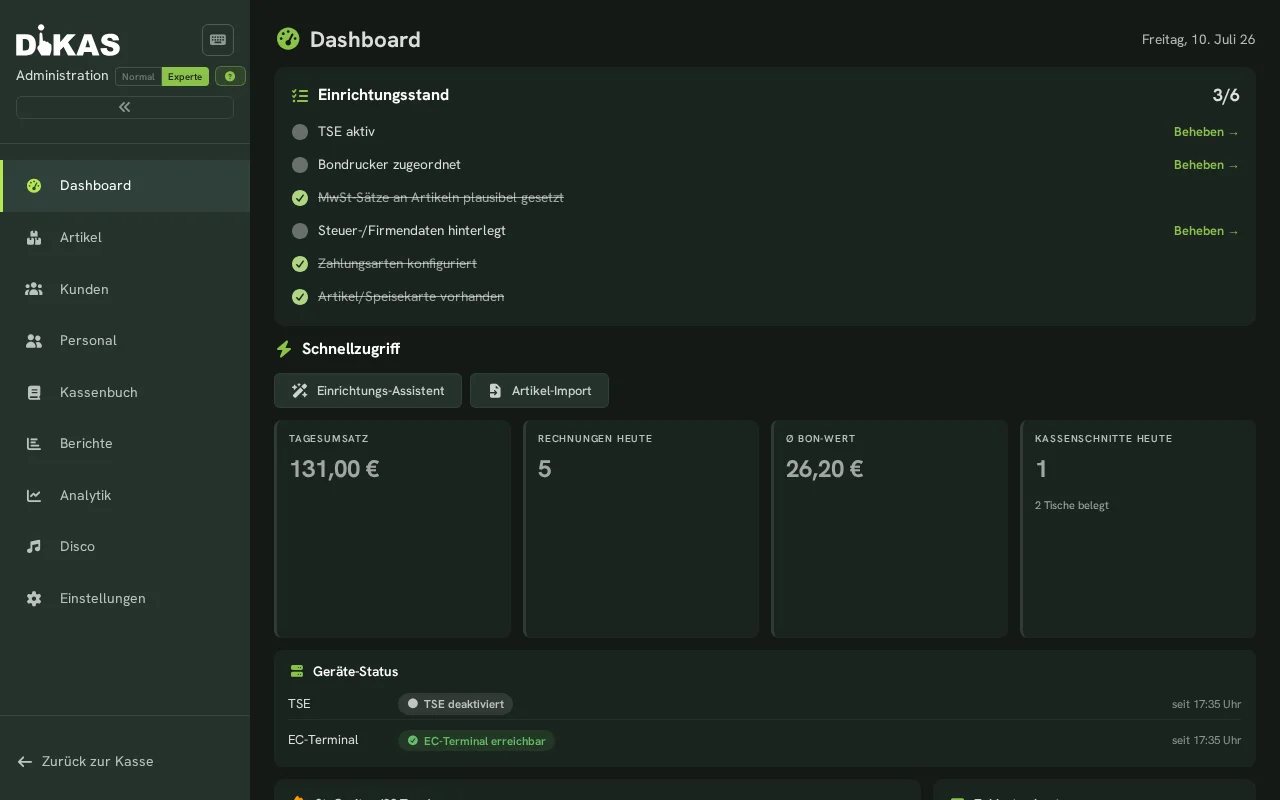
Displayed Information
| Section | Description |
|---|---|
| Daily Revenue | Revenue for the current business day |
| Revenue Trend | Chart showing revenue per hour |
| Open Tables | Number of currently occupied tables |
| Recent Receipts | The latest POS transactions |
| Shift Status | Current shift, opened since, staff |
The dashboard updates in real time via SignalR — new receipts and payments appear immediately.
Setup Status
At the top of the dashboard, the "Setup Status" card shows at a glance how complete the till setup is — as a score (e.g. "4/7") with a list of checked items:
| Item | What is checked |
|---|---|
| TSE active | Is the fiscal security module (TSE) enabled? |
| Receipt printer assigned | Is at least one receipt printer configured? |
| VAT rates on articles plausible | Do the configured tax rates look plausible? |
| Tax/company data on file | Is the company data for receipts/invoices complete? |
| Payment methods configured | Is at least one payment method set up? |
| Articles/menu present | Are there already articles in the menu? |
| Logo/receipt header set | Is a logo set for receipts/invoices? |
Completed items are shown struck through with a green checkmark; open items show a "Fix →" link straight to the relevant settings page. Once every item is done, the card collapses into a slim success notice, "Setup complete".
Device Status
Below it, the "Device Status" card shows a traffic light for the most important connected hardware:
| Device | States |
|---|---|
| TSE | Active / Disabled / Error |
| Receipt printers | All reachable / some unreachable |
| Card terminal | Reachable / unreachable |
Each row shows how long the current state has persisted. If a component (other than TSE) shows red for more than 10 minutes, or the TSE reports a warning/error, a banner also appears at the top of the admin area linking back to this card — it can be dismissed per incident.
Next Step
→ Articles & Groups — Manage your menu